Access control and passes
The front desk checks a client's pass, and the system decides whether to let them in: by membership, by booking, or anyone with a pass. Every entry and every refusal is kept in the log.
Choose the entry rules
Open Settings → Entry rules and choose a mode for each branch:
Open More → Settings → Entry rules. Each branch has its own rules: pick it in the Branch field, then choose a mode in the Who gets in block:
- Open entry — anyone with a valid pass gets in.
- By membership — a valid membership or a booking within the window is required.
- By booking — a booking for a session within the window around its start is required. The Let in without a booking switch also lets people in with a valid membership.
By default, entry by booking opens 60 minutes before the start, and you can change that. Latecomers with a booking are let in right up to the end.
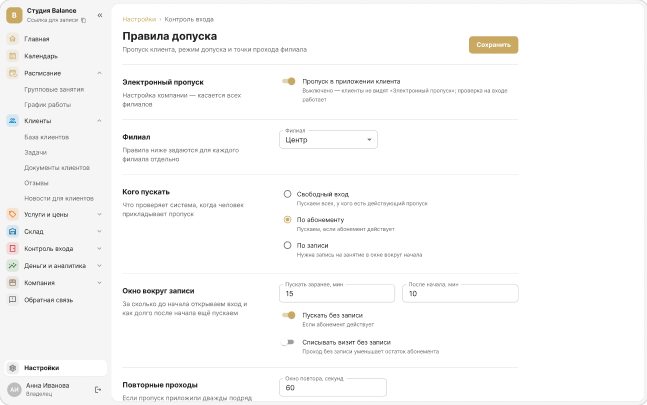
Save the rules with the checkmark in the top right corner.
Issue a pass to the client
A pass is a code in the client's mobile app, a card or wristband, or a QR code with a PIN. Cards and QR codes with a PIN are issued in the client's profile.
The card is tapped on a USB reader, and the QR and PIN button shows the QR code, the pass number and the PIN.
Open the client on the Clients tab and tap Access passes. The QR icon in the top right corner opens the Entry pass: the QR code, the pass number and the PIN. The + next to it issues a card: enter the card or wristband number and tap Issue.
The client takes a photo of the QR or remembers the number and PIN. The client always sees the same QR in the app and on the membership page from the link in the message — nothing needs to be turned on.
Check clients at the entrance
Open Access control → Entry check. Tap the card on the reader, enter the pass number with the PIN, or find the client by name.
Open More → Check-in. Tap Scan and point the camera at the QR code in the client's app — the first time, the phone asks for camera access. No QR code — use Find client to search by name, or Enter number manually: a card number, or a pass number with the PIN.
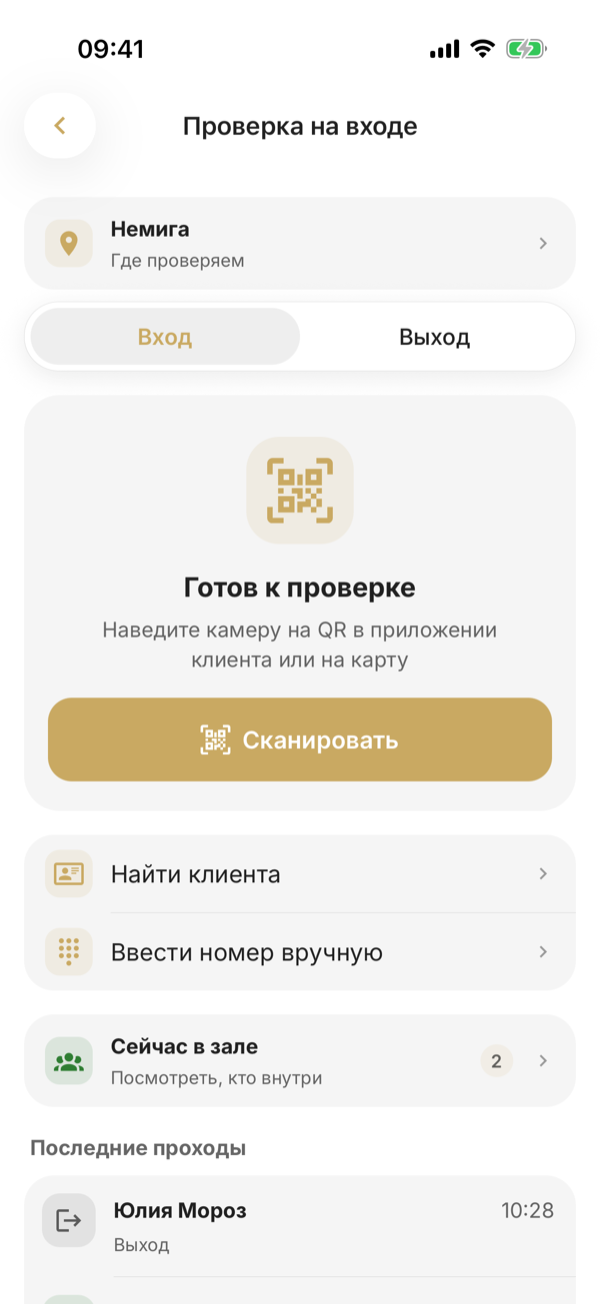
The system shows the decision, the membership and the session the client came to. A client with a booking is marked Attended in the session right away.
No booking — pick a session under Book for session: the client joins it marked Attended, and the membership is charged one visit — for the session, not for the entry.
After the answer, the button turns into Scan next. At the top of the screen are Where we check — the branch and the access point, if there are several — and the Entry / Exit switch. To keep the check at hand, make it a tab: at the bottom of More, tap Customize bottom bar and add Check-in.
If the system refuses entry, a staff member can let the client in once with the Let in once button. That decision goes to the log too.
Until hardware is connected, the “turnstile” is the front desk screen — a phone with a camera or a computer with a reader.
Check in at the session
Passes are checked not only at the entrance but at the session itself: whoever runs it scans the students instead of ticking the list.
Open the session in the schedule and, under Participants, click Check in by QR. Read the QR code with a scanner or click Number and PIN — the client sees them on the membership page. After each answer the field is ready for the next student.
Open the session and, under Participants, tap Check in by QR. Point the camera at the QR code in the client's app or tap Number and PIN. After the answer — Scan next.
- The student is booked — marked Attended right away.
- The student isn't on the list — you see which membership will be charged and how many visits remain, or that they pay on site and why. Book and check in adds them to the session marked Attended.
- The pass isn't valid — for example, revoked — the screen names the reason.
A session check-in is attendance, not an entry: it doesn't go to the check-in log or the "inside now" counter. A latecomer can be booked until the session ends.
Review the check-in log
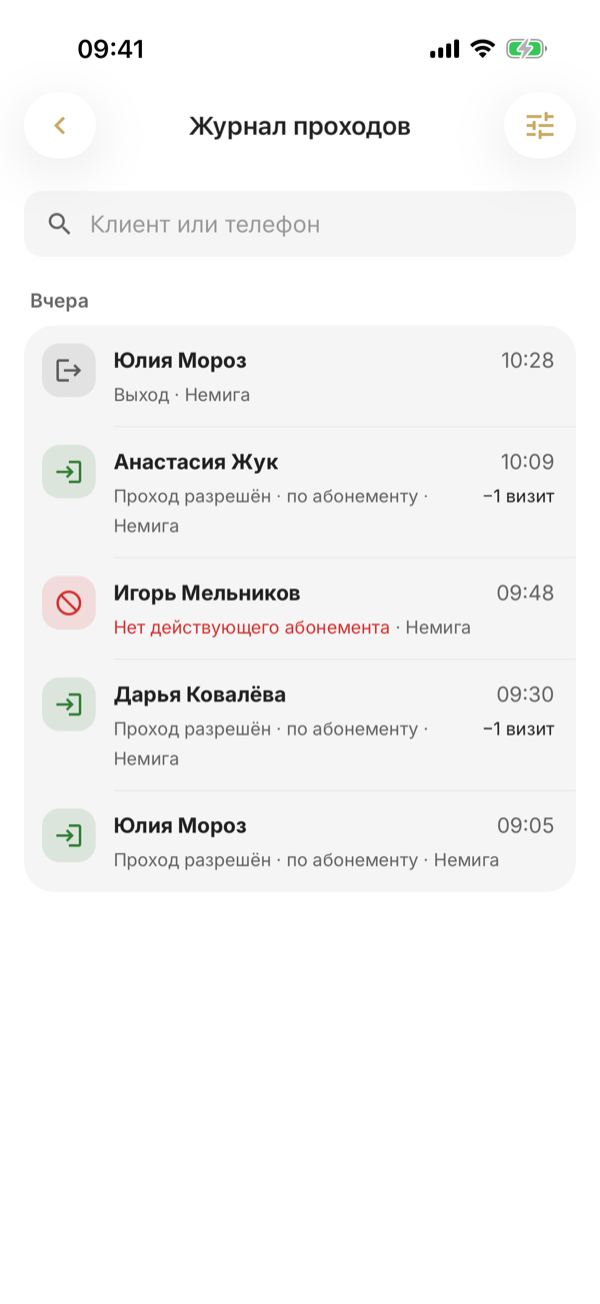
The log shows every entry and refusal, including unknown cards, so you can sort out any disputed situation.
The log is in Access control → Check-in log.
Open More → Check-in log. Check-ins are listed by day, with a search by client or phone at the top. The filter icon in the top right corner leaves only Denied or Let in by staff and the selected branch. Tap a check-in — the sheet shows the decision, the employee and the Open client profile button.