Waitlist for sessions
When a group session is full, a client can join the queue. When a spot frees up, the first person in line gets an offer to book it, and the spot is held for them until they reply.
Turn on the waitlist
Open Settings → Online booking and turn on Enable waitlist.
Open More → Settings → Online booking and turn on Waitlist at the bottom of the screen.
The waitlist is off by default: clients see only free spots.
The waitlist works only for group sessions and only when there are no free spots.
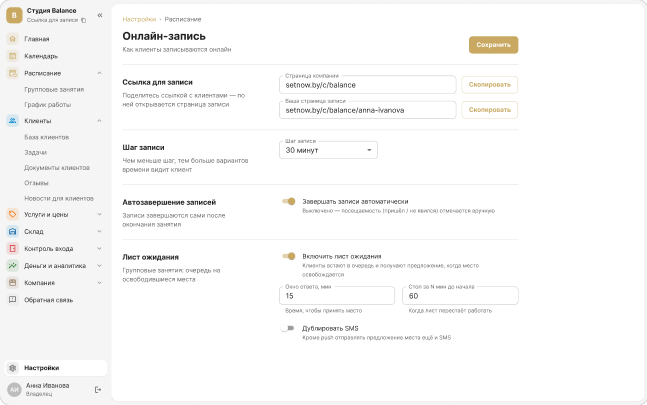
Set the response time
In the same place, set the queue rules:
- Response window — how many minutes a client has to accept the spot. 30 by default.
- Stop N min before the start — how many minutes before the session the queue stops. 120 by default. If online booking closes earlier, the queue stops with it.
The fields appear under the switch once it's on. Save the settings with the checkmark in the top-right corner.
How the queue works
A client joins the queue in their app. When a spot frees up, the first person in line gets an offer, and the spot is held for them until the response window ends.
If they don't reply in time or decline, the offer goes to the next person. After the stop before the start, the queue freezes and the free spot is open to everyone.
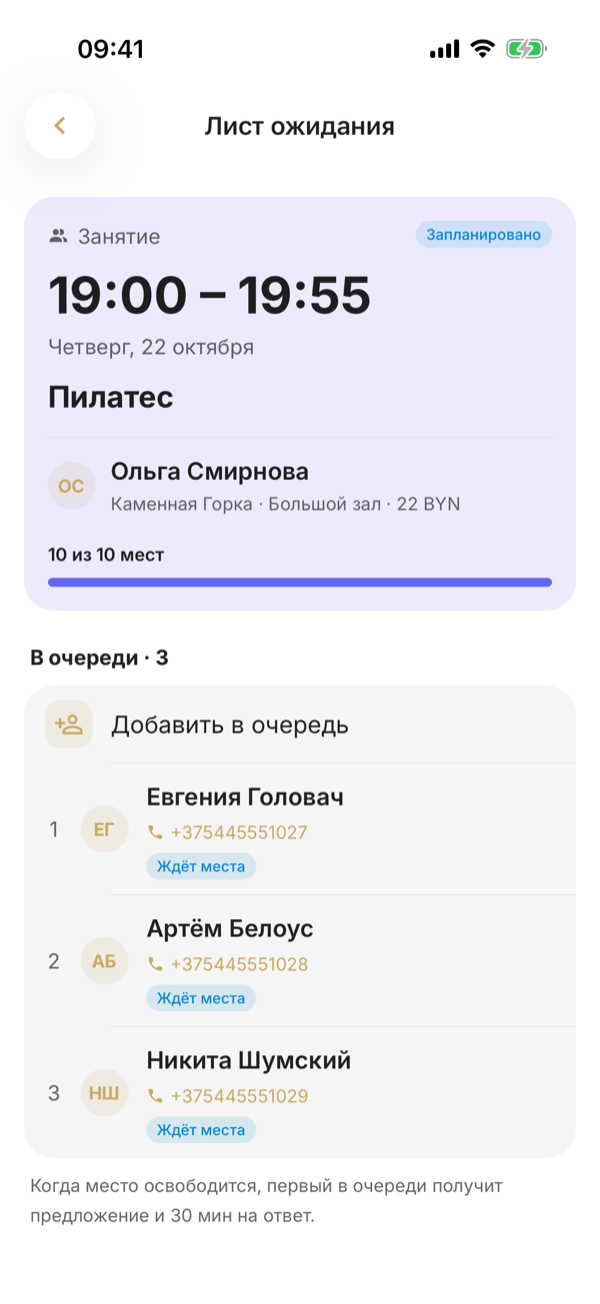
A staff member can also add a client to the queue from the session card.
You can also add a client to the queue yourself: on the session screen, tap Waitlist, then Add to the queue, choose the client and tap Add. The Waitlist row is shown while the waitlist is turned on in the settings.
Notifications
The client receives the offer as a push notification — and as a message in Telegram, WhatsApp or by SMS, following the channel order in the client notification settings. The session host receives a “client joined the queue” push, which they can turn off in their push notification settings.
The channels are in Settings → Client notifications, the host's push is in Settings → Personal → My notifications.
The channels are in More → Settings → Client notifications, in the Waitlist block; the host's push is the Waitlist switch in More → Settings → Personal → My notifications.