Calendar
The Calendar shows everything that happens in the company: client bookings, group sessions and busy blocks of all employees. This is where you book clients, reschedule and cancel visits, and mark who came.
Views and filters
In the top-right corner are Day, Week and Month, and next to the title is the period switcher. The Branches, Employees and Type filters — Bookings or Group sessions — are remembered for next time; Reset all brings back the full view.
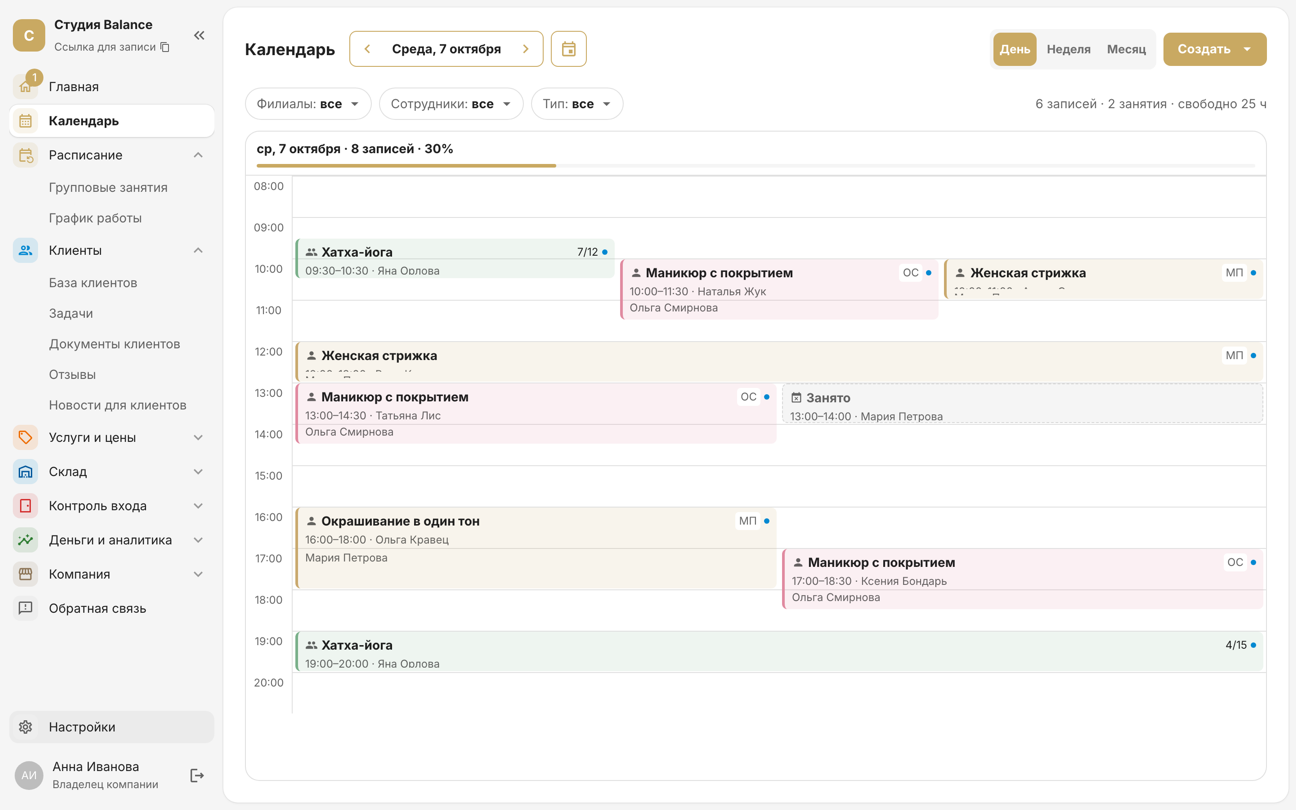
- Day — an hourly scale: bookings that overlap in time are placed side by side, and the red line marks the current time. Above the grid on the right are the numbers of bookings and sessions and how many hours are still free.
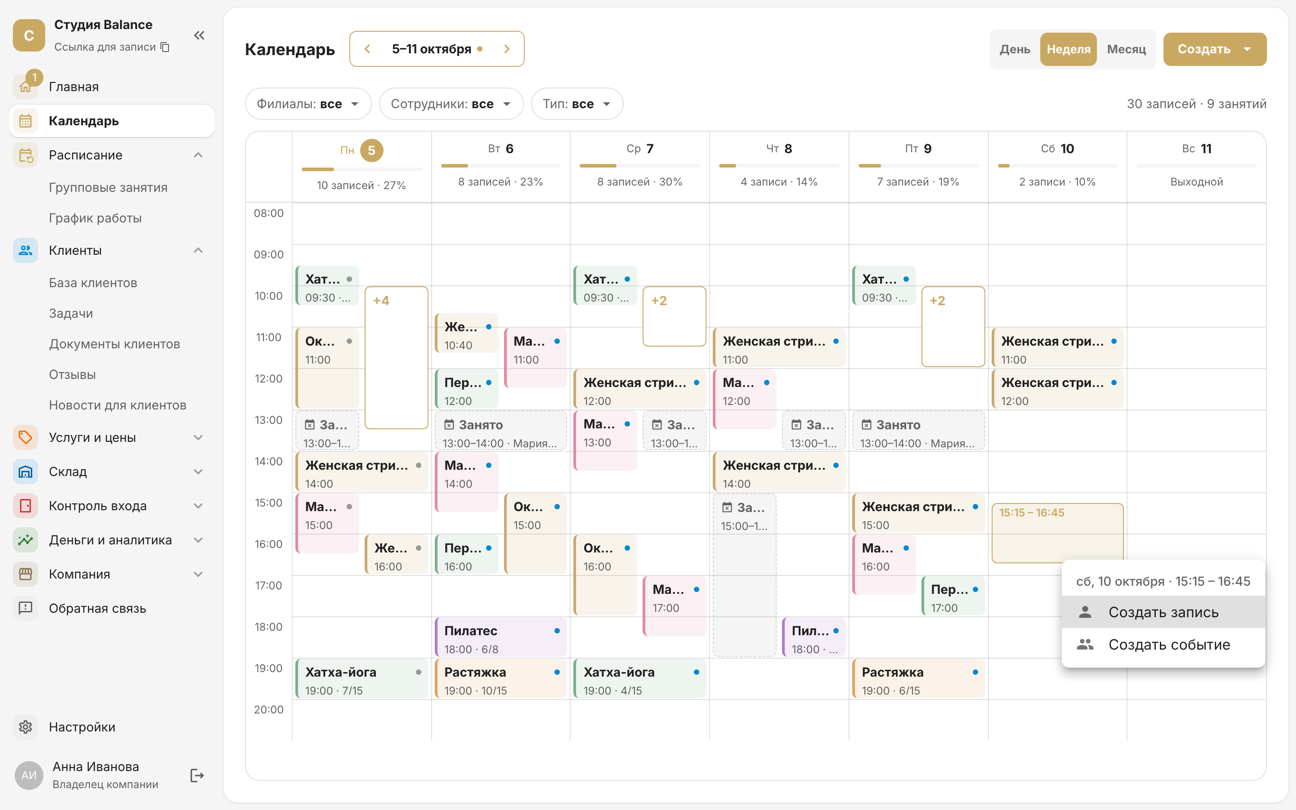
- Week — seven columns. Under each date are the number of bookings and the load bar; a day without shifts is labelled “Day off”. If there are many bookings at the same time, some are hidden under “+N”.
- Month — the load and the first bookings of each day. Click a day to open it.
Open the Calendar tab at the bottom of the screen, or More → Calendar if it isn't there. At the top are Day, Week and Month, and to their right is the period: tap it to pick a day or month. The filter icon in the top-right corner opens Branch, Employees and Type — Bookings or Group sessions; the number on the icon shows how many filters are set. The calendar view is remembered for next time. If you've moved away from today, a Today button appears at the bottom.
- Day — at the top is the week strip with each day's load: tap a date to open that day, or swipe the strip to move to another week. Below is the hourly scale: bookings that overlap in time are placed side by side, and the red line marks the current time.
- Week — seven hourly columns with the load strip above them; swipe the strip to move to another week. The date of a day without shifts or bookings is greyed out.
- Month — a load bar under each date; a dot next to a date means there's a busy block that day. Tap a day to see its bookings in a list under the grid.
- If there are more bookings at the same time than fit side by side, some are hidden under “+N” — tap it to see them all.
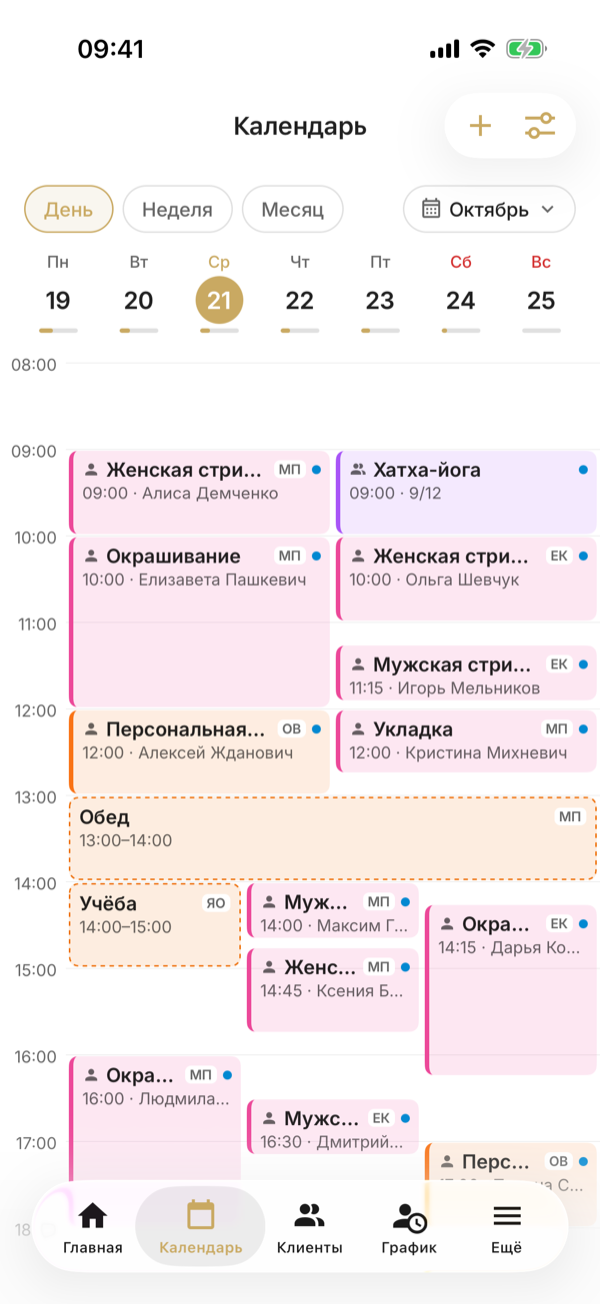
Day load is how much of the working time in the work schedule is taken by bookings and sessions. From 85%, the bar turns orange. If nobody is scheduled to work that day, there's no bar.
Create a booking or session
Click Create → Create booking or Create session. It's quicker straight from the grid: in Day or Week view, click a free time or drag the mouse across the grid from start to end; in Month view, click “+” in the day's cell. The selected time is filled into the form.
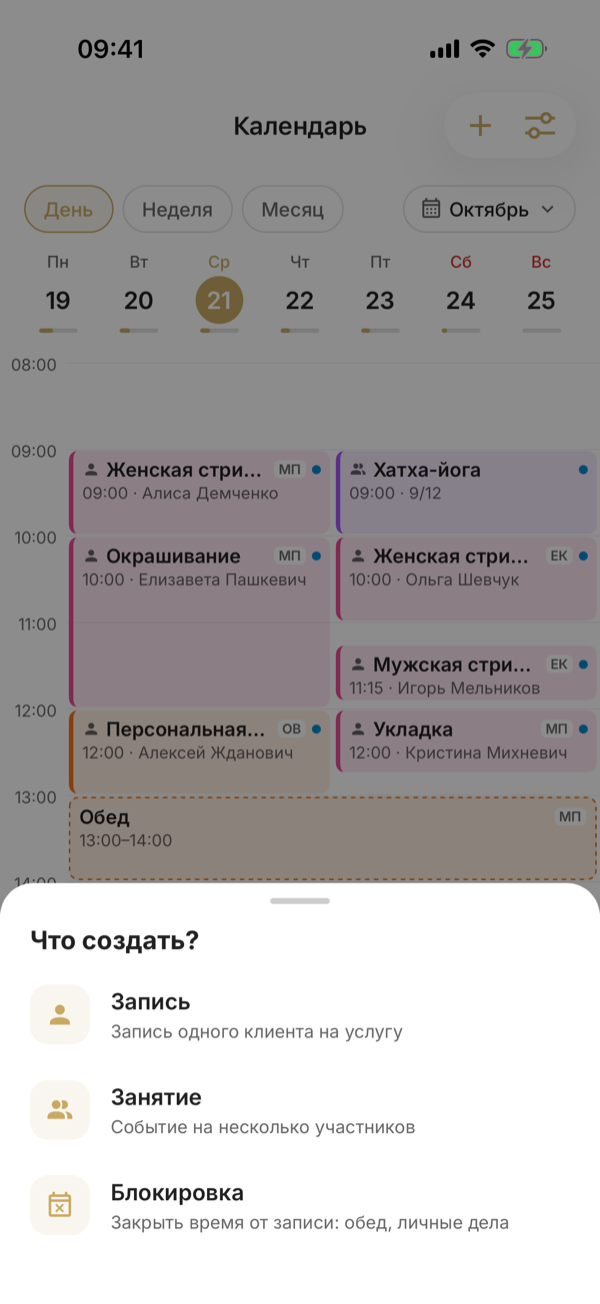
Tap + in the top-right corner to open What to create? and choose Booking or Session. It's quicker straight from the grid: in Day or Week view, tap a free time; in Month view, tap “+” next to the number of bookings for the selected day — then choose what to create. The selected day and time are filled into the form. On the grid, time is picked in 30-minute steps; adjust the exact minutes in the form.
In the New booking form, choose the services, the client, the specialist, the branch and the Start date and time. If the client isn't in your client base yet, add them right there: turn on Create a new client and enter a phone number and name. The booking will last as long as the services take. To end it at a different time, turn on Custom end time and pick the time. If you dragged the time across the grid, the switch is already on and the end is set.
In the New booking form, choose Services, Client, Specialist, Branch and Date and time. If the client isn't in your client base yet, add them right there: tap the icon with a plus to the right of the Client field, enter a phone number and first name — or tap Choose from contacts — and save with the check mark: the client is filled into the booking. The booking will last as long as the services take. To end it at a different time, turn on Custom end time and pick the time. The check mark in the top-right corner saves the booking.
If you agreed on a different amount with the client, turn on Custom price at the bottom of the form and enter it. It goes into revenue, payroll and the client's history instead of the services' list price, and the booking card marks the amount as "custom price". To go back to the list price, turn Custom price off when editing the booking. Changing the services doesn't reset a custom price.
The form's fields adjust to each other: once you choose a service, only the specialists who perform it remain in the list, and vice versa. The group session form is described in “Group sessions”.
You can also put a booking outside a shift — the shift will stretch by itself, more details. But the booking won't be saved if:
- the employee already has a booking or session at this time — “The employee already has a booking at this time”;
- the time is closed by a busy block — “This time is blocked as "Busy"”;
- the booking doesn't fit within one day: the end must be later than the start and on the same day.
Open a booking
Click a booking to open its card on the right: date and time, branch, specialist, services, notes and client. The pencil at the top is for editing: move the booking to another time, change the specialist, services or branch.
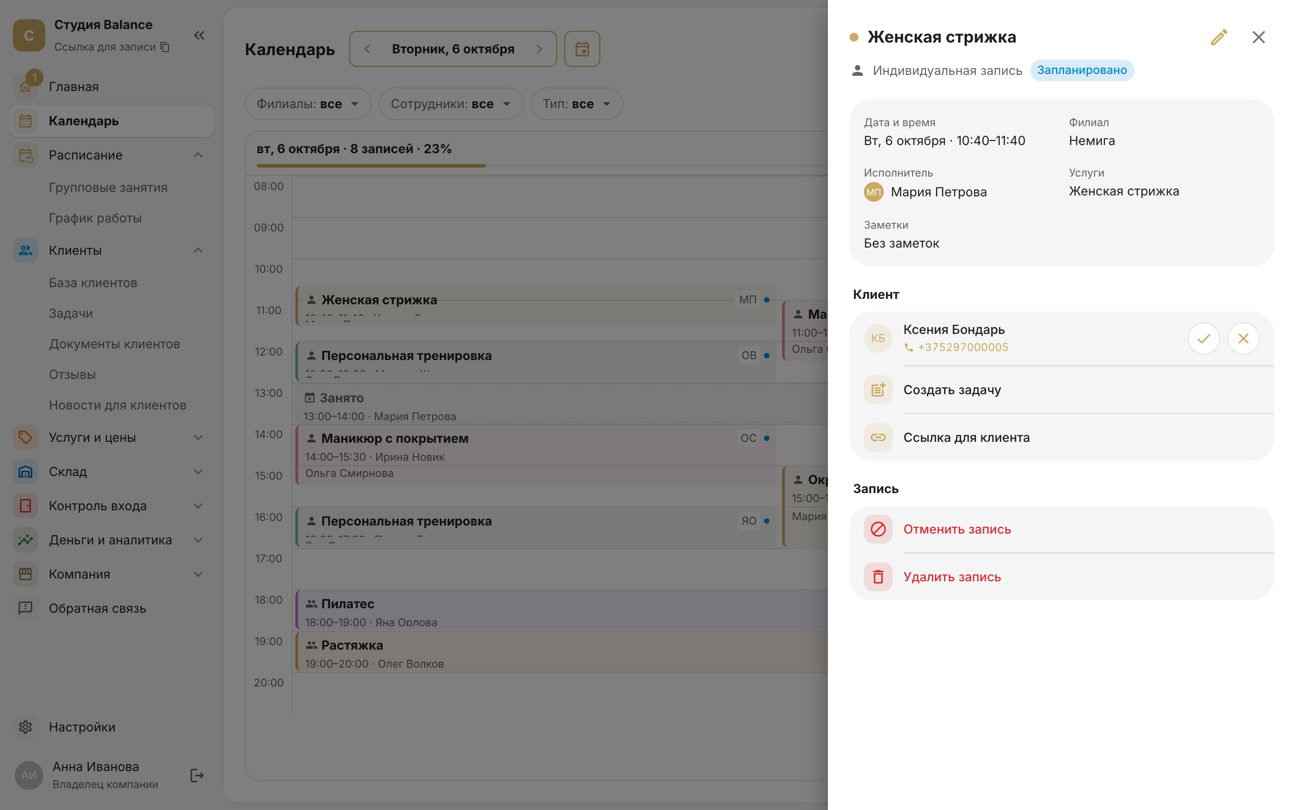
- ✓ and ✕ next to the client are “Attended” and “No-show”; clicking again clears the mark. Clicking the phone number starts a call.
- Create task — a to-do for the client, such as calling back. More in “Client tasks”.
- Link for the client — the booking page: the client sees the time and address and can cancel the booking themselves.
- Cancel booking and Delete booking — how they differ is explained in “Attendance, cancelling and deleting bookings”.
Tap a booking to open it full screen: time, date, services, specialist, branch and price, with the Client and Booking groups below. The pencil in the top-right corner opens Edit booking: move the booking to another time, change the specialist, services or branch, and save with the check mark.
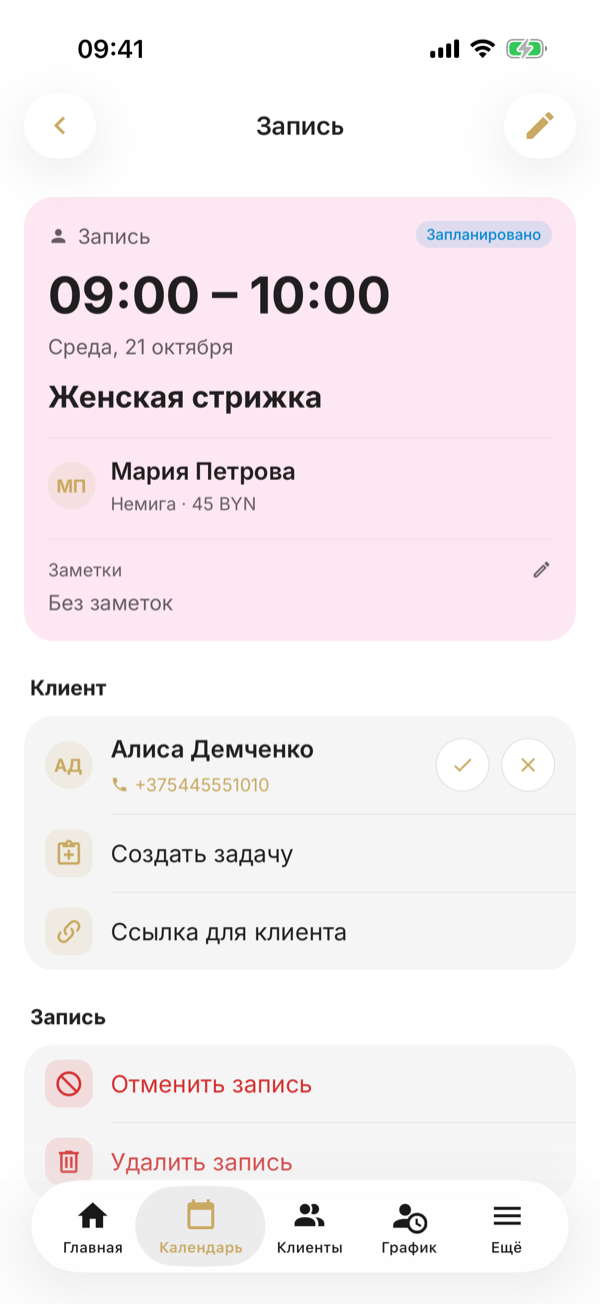
- ✓ and ✕ are the circles on the right of the client's row: “Attended” and “No-show”; tapping again clears the mark. Tapping the phone number starts a call, tapping the name opens the client's profile.
- Create a task — a to-do for the client, such as calling back. More in “Client tasks”.
- Client link — the booking page: the client sees the time and address and can cancel the booking themselves. Your phone offers to send the link in a messenger or copy it.
- Cancel booking and Delete booking are in the Booking group. How they differ is explained in “Attendance, cancelling and deleting bookings”.
When you move a booking, its duration stays the same, and the client doesn't get a separate notification — let them know yourself. The reminder before the visit, if it's on, will come for the new time.
What employees see
A specialist sees only their own bookings and sessions in the calendar, without the branch and employee filters. An administrator sees their branches' bookings, and the owner sees the whole company's.