Stock management
Stock is kept per branch: what's on the shelf, where materials go and how much one service costs you.
Set up your items
In Stock → Items, add items: the name, the unit (pieces, milliliters, liters, grams, kilograms or meters) and the purpose — for sale, for use in services, or both. Many items are easier to upload from a file.
Open More → Items (the Inventory group) and tap + in the top right. In the New item form, fill in Name, Purpose — Retail, Consumable or Retail and consumable — and Unit (pcs, ml, l, g, kg, m), then tap the check mark in the top right. Many items are easier to upload from an .xlsx or .csv file: ⋯ in the top right → Import file.
The stock page is visible only to people the owner has given access to: it shows purchase prices.
Enter opening balances and receipts
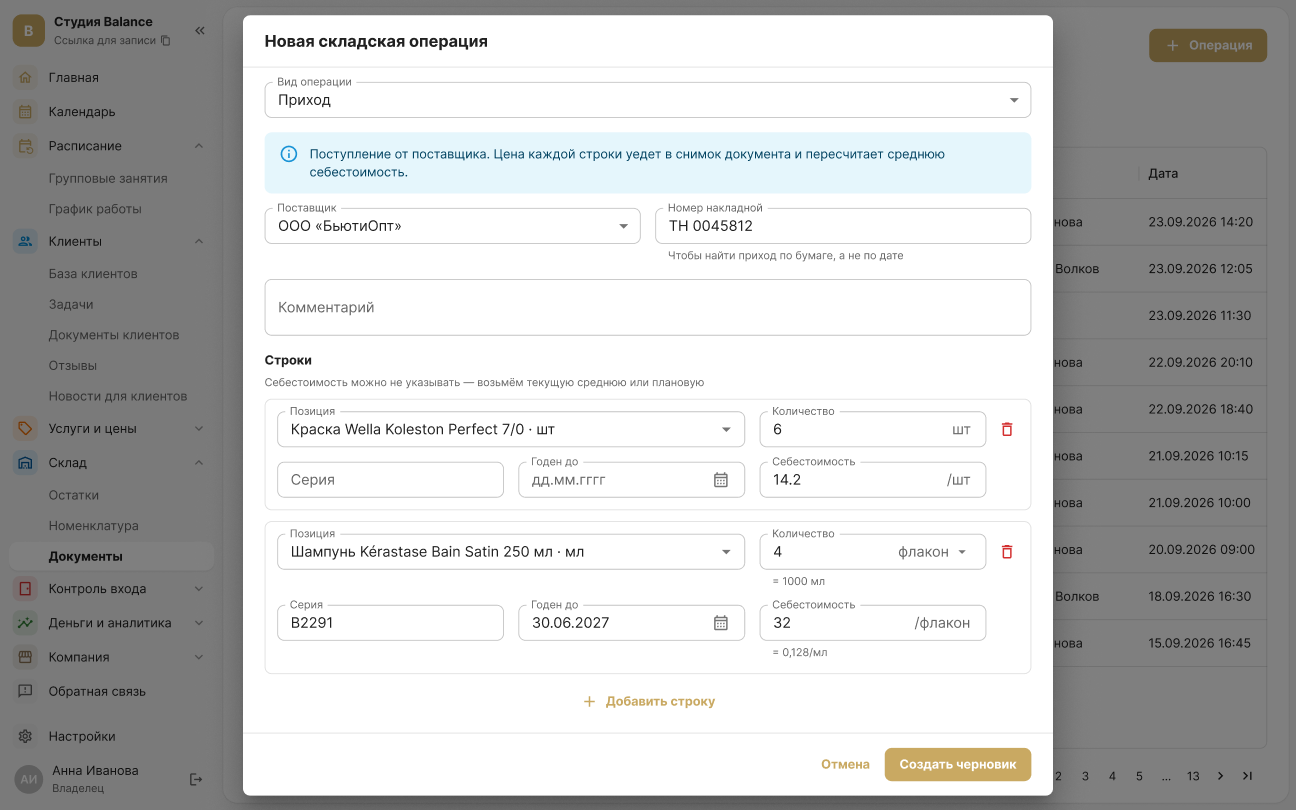
In Stock → Documents, create an Opening balance, and record every delivery as a Receipt with the purchase price. A document is saved as a draft first — stock levels change only after it's posted.
Open More → Documents in the Inventory group and tap +. Under Operation type, choose Opening balance, and record every delivery as a Receipt with the purchase price. Check the Branch, add items with Add line and tap the check mark in the top right — the document opens as a draft. You can still correct the draft's lines and save them with the same check mark; stock levels change only after you tap Post at the bottom of the screen.
A posted document can't be edited or deleted — mistakes are corrected with a reversal.
The Reverse button is at the bottom of a posted document.
Set up consumption for services
In a service, set the norm — how much material one service uses. When a client is marked Attended, the materials are written off automatically, and the service margin is calculated from day one.
The norm is set in More → Services: open the category and the service, then tap Materials at the bottom. In the Usage norm block, add materials with Add item, enter the quantity and tap the check mark in the top right.
Keep an eye on stock levels
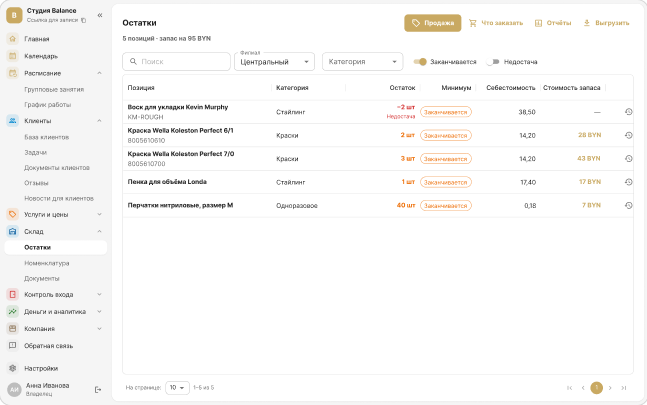
In Stock → Stock levels, set the minimum and target quantity for an item.
Open More → Stock levels, or the Inventory tab if it's on your tab bar. Tap an item — in the Branch thresholds sheet, set Minimum stock and Target stock and tap Save.
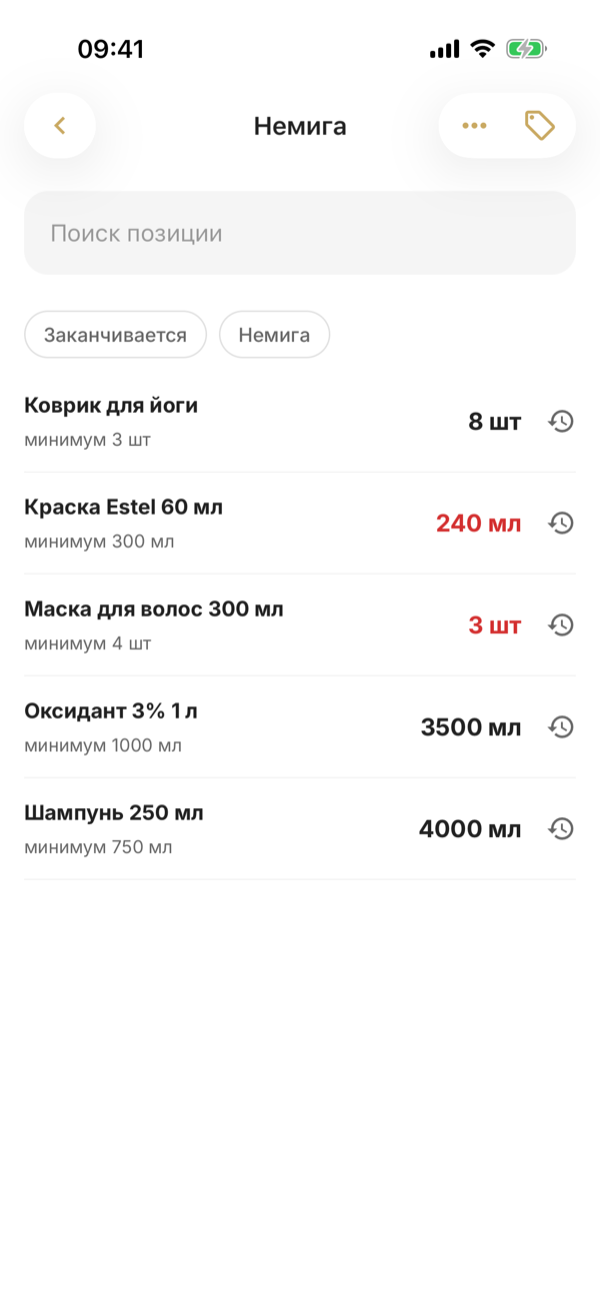
When an item is running low, the owner and administrators get a push, and the What to reorder report prepares a draft receipt.
The report opens from the ⋯ menu in the top right of the stock levels screen, and the Order button next to a supplier creates the draft receipt. The low-stock push opens stock levels with the Running low filter.
Do a stocktake
Count the shelf with a Stocktake document. While it's a draft, you can enter the actual quantities as many times as you like; when it's posted, surpluses and shortages are recorded automatically.
Create it the same way as a receipt: More → Documents → + → Stocktake — the item lines are filled in for you. In the document that opens, enter Counted for the items you've counted and save with the check mark in the top right: an empty field means “not counted”, and that line won't touch the stock level. When everything is counted, tap Post at the bottom of the screen.