Employee personal settings
Only you can see and change these settings. They apply both in the web dashboard and in the mobile app.
Open personal settings
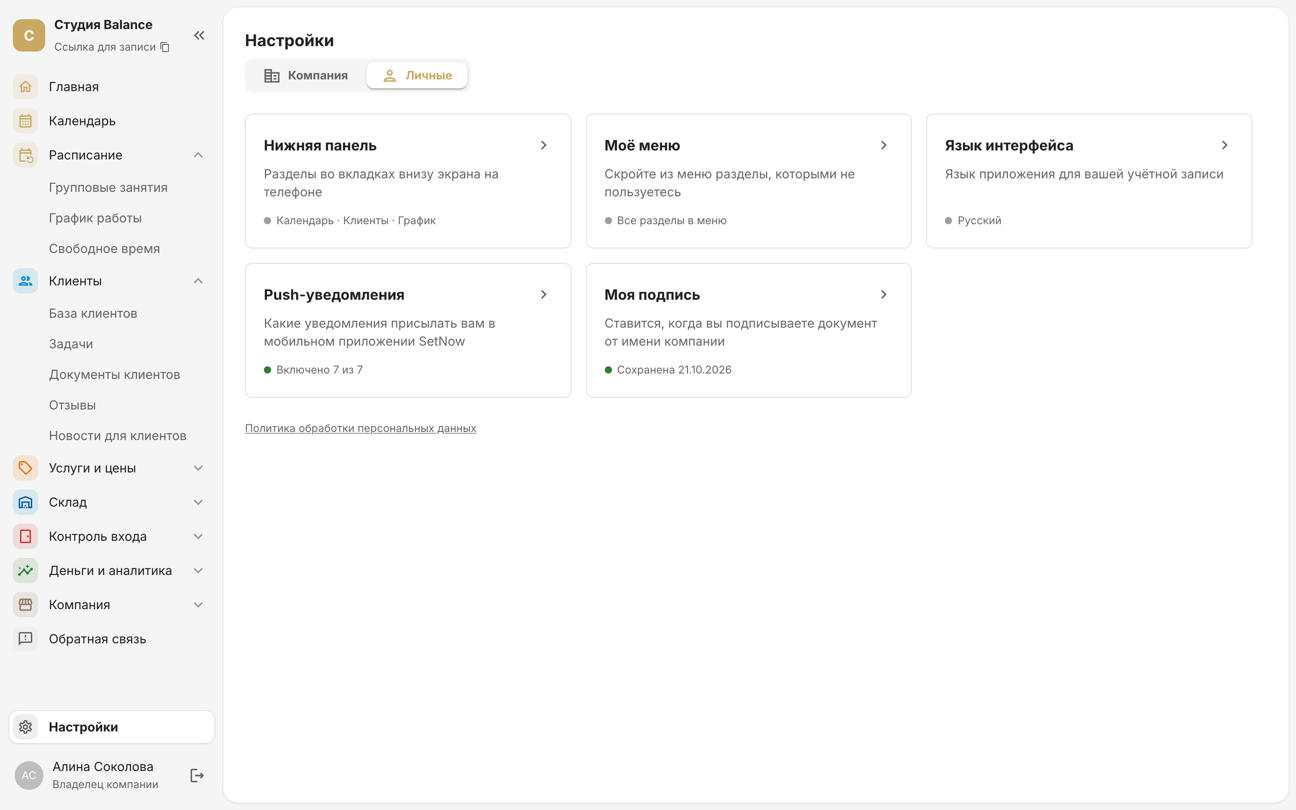
In the menu, choose Settings → Personal — Settings is at the bottom of the menu on the left. Without access to the company settings there's no tab switch: your personal settings open right away. Here you'll find the Bottom bar, My menu, Interface language, My notifications and My signature cards, each showing what's currently selected. A card opens its own page, and the Settings link above the title takes you back to the cards.
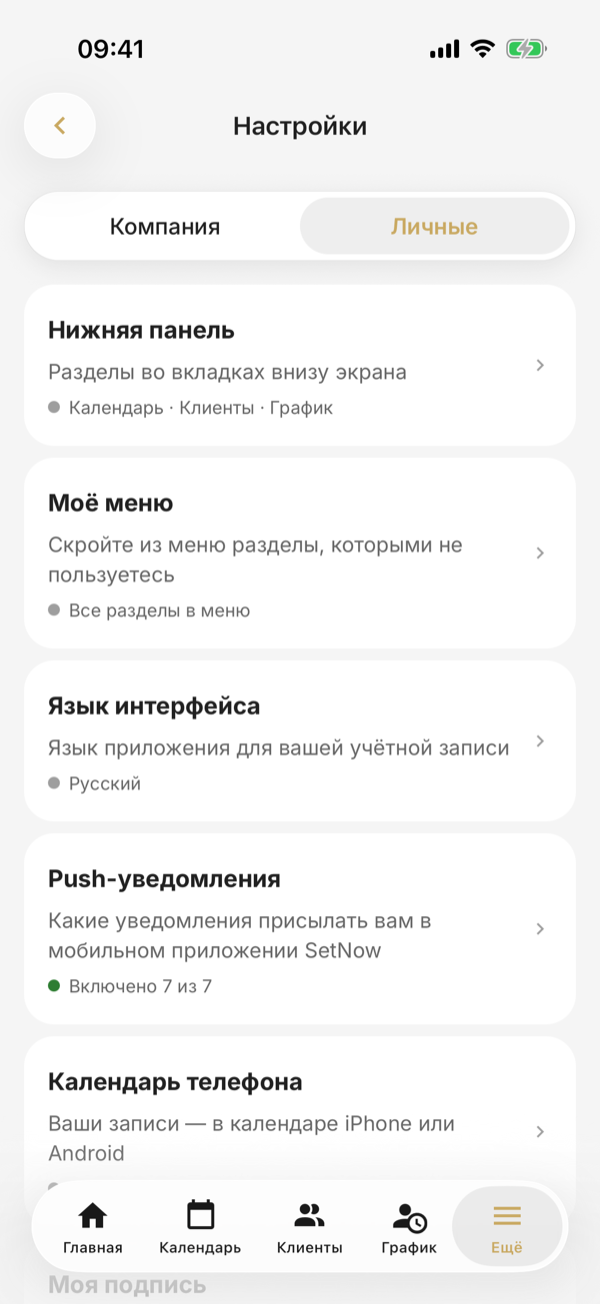
Open More → Settings — it's the first row under your profile — and choose Personal at the top. Without access to the company settings there's no switch — your personal settings open right away.
Interface language
The language of the dashboard and the app for your account: Russian, English, Georgian or Polish. Your push notifications and emails come in it too, and it doesn't change for other employees.
Open Interface language and choose a language or Same as company — the line under it shows the company's current language. Your choice is saved right away; there's no Save button here.
Open Interface language and choose a language or Same as company — your choice is saved right away.
My menu
Hide the sections you don't use. This doesn't remove access: a page still opens from a link or a notification, and other employees' menus don't change.
Open My menu — the Customize menu link under the menu on the left leads here too when something is hidden. Untick the sections you don't need; a group's checkbox unticks the whole group. Your menu will look like this on the right shows what remains. Click Save to the right of the title; Show all next to it ticks every section again — save after it too.
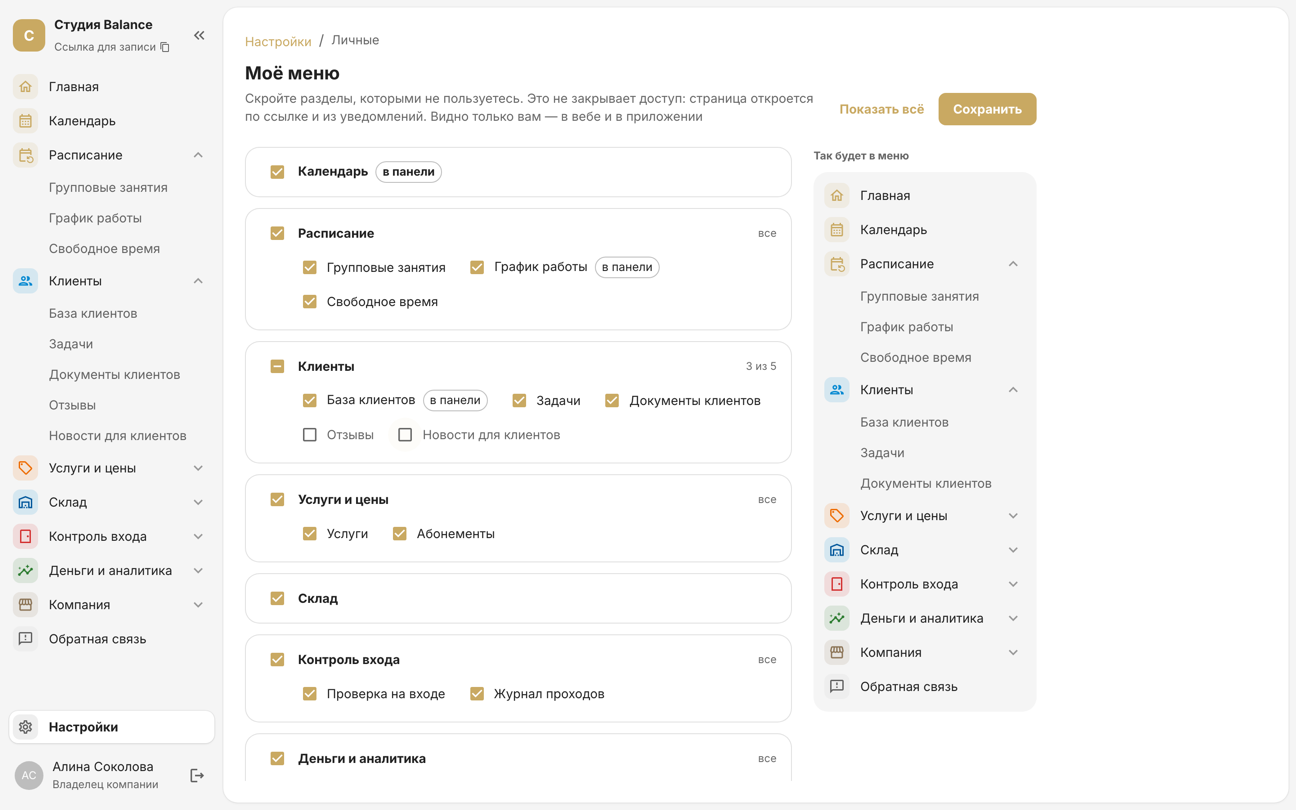
A section marked in the bar is a tab in the bottom bar on your phone and stays there even if you hide it from the menu. Hidden sections are shared with the app: whatever you hide here disappears from More in the app too.
Open My menu — or tap Customize menu at the bottom of the More screen. Switch off the sections you don't need: they disappear from More. Each tap is saved right away, and Show all brings every section back.
A section marked In the bottom bar stays a tab at the bottom of the screen even if you remove it from the menu. Hidden sections are shared with the web dashboard: whatever you hide here disappears from the menu on the computer too.
Bottom bar
The bottom bar is the row of tabs at the bottom of the screen on your phone: Home, up to three sections and More. Open Bottom bar: the top of the page shows how the bar will look. + in the Available list puts a section in the bar, − in the In the bar list removes it; at least one section must stay. If the bar is full, + asks which section to replace. Click Save to the right of the title.
The bar appears in the SetNow app and in the dashboard on a narrow screen — for example, in your phone's browser; on a computer, the menu on the left takes its place. The choice is shared: what you save here appears in the app too.
At the bottom of the screen you have Home, up to three sections and More. Choose which sections are tabs on the Bottom bar screen — Customize bottom bar at the bottom of the More screen leads there too. + in the Available list puts a section in the bar, − in the In the bar list removes it. If the bar is full, + asks which section to replace. Changes are saved right away.
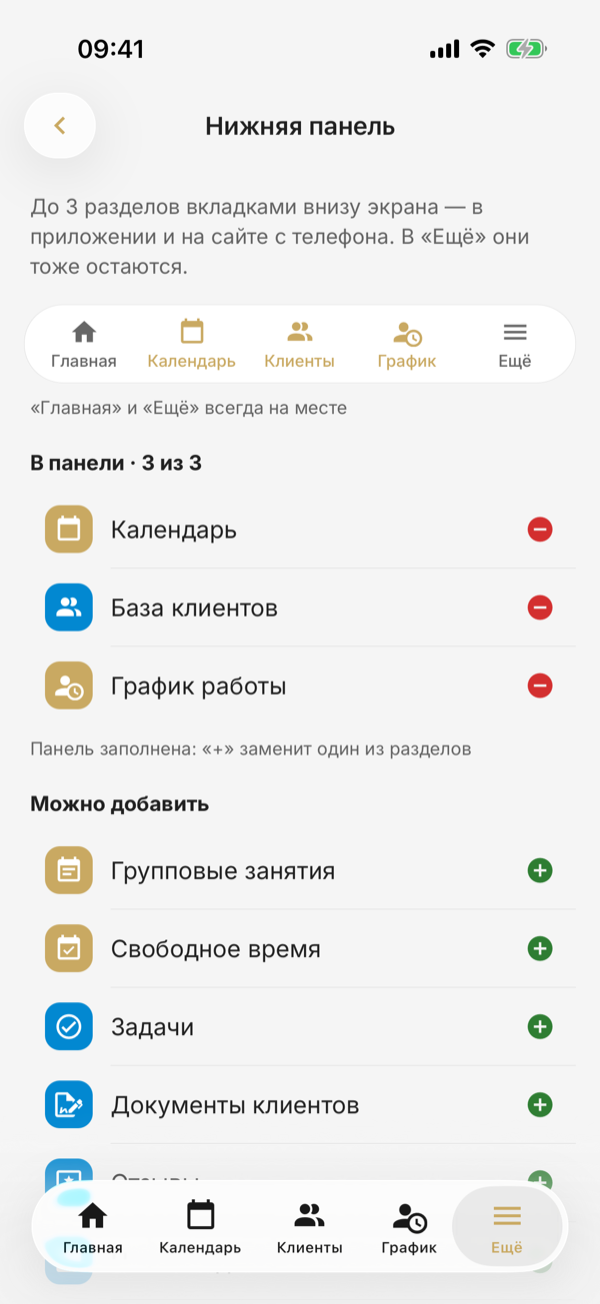
Until you choose anything, the tabs are the first ones available to you out of Calendar, Clients, Shifts and Sessions. A section in a tab also stays under More. The web dashboard has the same bar when you open it in your phone's browser.
My notifications
Choose what to show in your notification feed. There's one feed in the web account and in the app, and your phone also gets push:
- new bookings, cancellations and booking reminders;
- What's new in SetNow — SetNow news;
- waitlist and tasks;
- documents and stock.
A notification you turn off comes neither to the feed nor as push. The exception is What's new in SetNow: news is always in the feed, and the switch only stops push. The setting is saved immediately.
If no pushes arrive at all, check that SetNow is allowed to send notifications in your phone settings.
Phone calendar
Turn on Export appointments to phone calendar — your appointments, sessions and busy blocks appear in the iPhone or Android calendar as a separate “SetNow” calendar and stay up to date. When you turn it on, the phone asks for calendar access.
The calendar gets appointments from the past week and 60 days ahead, with client names and phone numbers. SetNow doesn't see edits made in the calendar itself and overwrites them on the next update. The setting applies to this phone only; turning it off removes the “SetNow” calendar from it. The item is visible if you have access to the Calendar section.
My signature
Sign once, just as you would on paper — the signature is applied at the click of a button when you sign documents on behalf of the company. If you change your signature, documents that are already signed stay as they are.
Open My signature and click Draw signature — the My signature window opens. Sign in the box with your mouse, or with your finger on a touchscreen, and click Save signature; Clear in the corner of the box wipes it. Your saved signature is shown on the page with its date: Draw again replaces it, and Delete signature removes it. If you don't have a signature yet, the dashboard opens this window by itself when you sign a document.
Open My signature, sign with your finger in the Draw your signature box and save with the check mark at the top right. Clear wipes the box, and Delete signature under your saved signature removes it. If you don't have a signature yet, the app offers to Draw one when you sign a document.
“My signature” is visible if you have access to the “Client documents” section. Signing for the company requires signing rights, which the owner grants.