Moving your client base
There's no need to retype your client base or prepare the file: SetNow finds the phone numbers, names and the rest in the table, merges duplicates and skips everything else.
Where to get the file: an export from DIKIDI, contacts from WhatsApp and your phone or any table of your own. Excel (.xlsx and the old .xls), CSV, TXT, JSON, LibreOffice spreadsheets (.ods) and phone contacts (.vcf) all work — up to 50 MB and 20,000 rows.
What gets imported
| Field | Required | What works |
|---|---|---|
| Phone | Yes | A mobile number in any format: “+375 29 123-45-67”, “8 029 123 45 67”, “375291234567”. Numbers from your company's country can go without the country code, others need it. If a client has several numbers, the first mobile one is taken. |
| First name | Yes | In its own column or together with the last name: “Anna Miller” and “Miller Anna” are both read correctly; a patronymic isn't imported. Notes added to a name, like “Maria manicure” or “Anna (brows)”, don't end up in the name — they're saved in the client's note. |
| Last name | No | In its own column or taken from the full name. |
| No | A username (“@anna.nails”) or a link to the profile. | |
| Note | No | A column with comments or remarks, up to 1,000 characters. |
Email, date of birth, visit history, upcoming bookings, memberships and discounts aren't carried over by the file — add them manually.
Open the import
Go to Clients → Client base and click Import in the top right. While the base has no clients at all, the file field is right in the list.
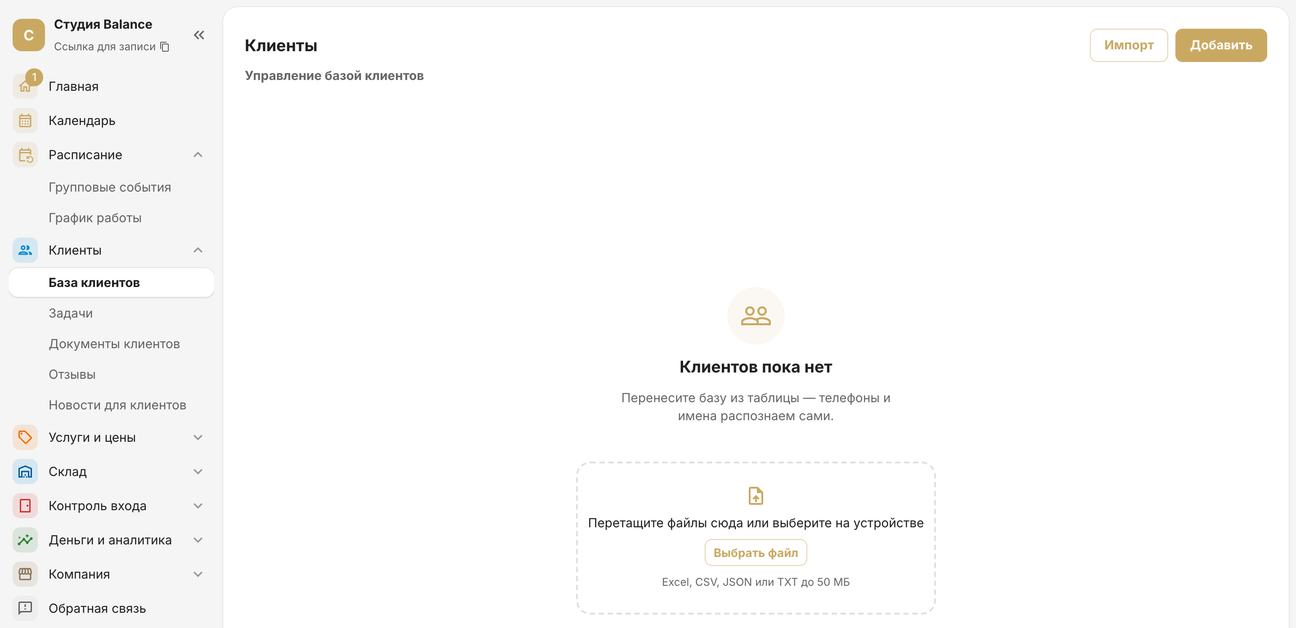
Open the Clients tab — or More → Client base if the tab isn't in your bottom bar — and tap the file upload icon in the top right, next to +: Import clients opens. While the base has no clients at all, the Choose file field is right in the list, under No clients yet.
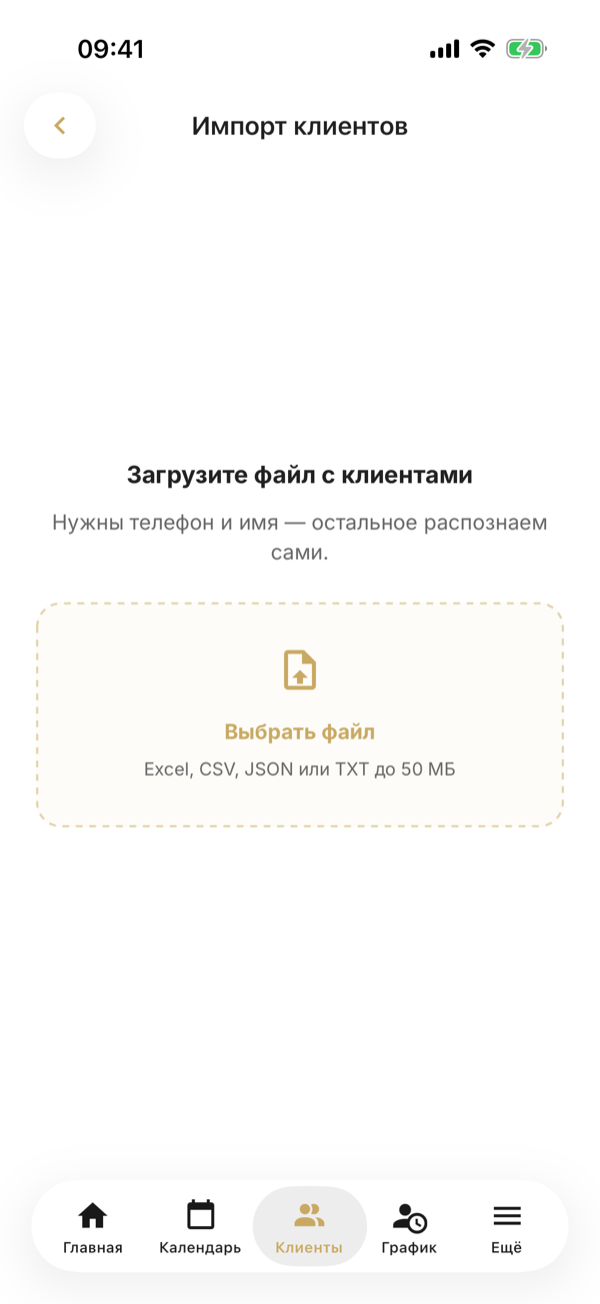
The owner and administrators can upload a client base.
Choose the file
Drag the file into the box or click Choose file.
Tap Choose file — the phone's file picker opens: a file from the phone's storage, iCloud Drive or Google Drive will do. If the spreadsheet came in a messenger or by email, save it to your phone's files first.
The file doesn't need any preparation: SetNow skips a title above the table, extra columns, totals and empty rows on its own, and finds the sheet with clients even if it isn't the first one and sits next to a summary and a bookings log. If your clients are spread across several sheets with the same columns — by month, for example — SetNow collects them from all of them.
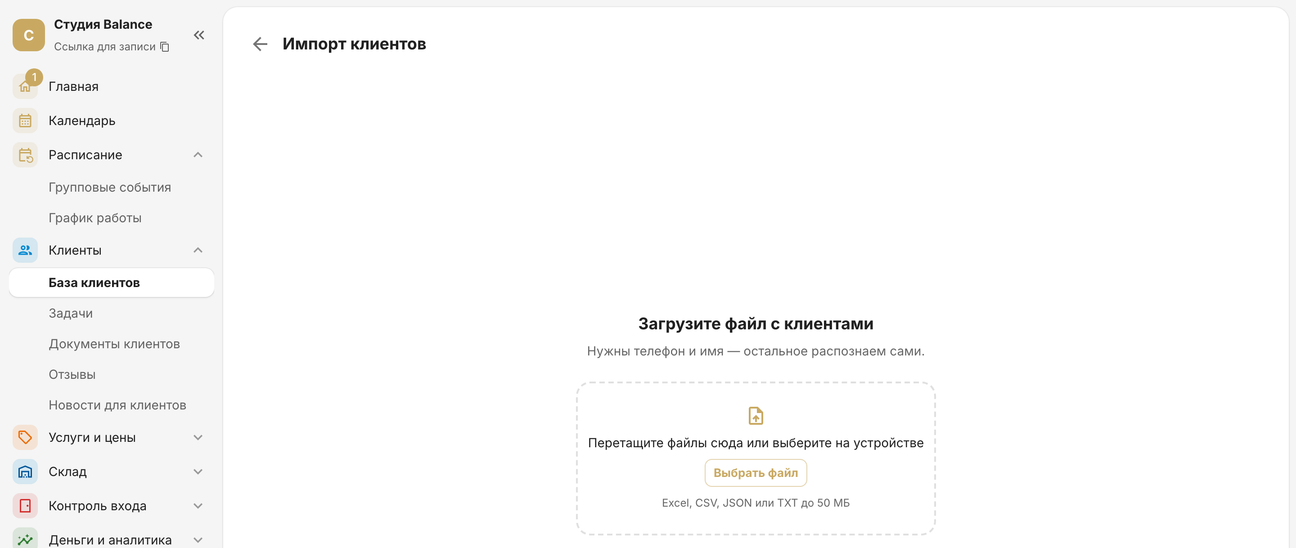
A password-protected file can't be read — remove the password and upload it again.
Wait for it to finish
First the file uploads — the screen says Uploading the file…; wait for it to finish. Once it says Importing clients…, the file is on the server: the bar shows how many rows have been processed.
Now you can close the page — the clients will still be imported.
Now you can leave the screen — the clients will still be imported, and the client list refreshes when you come back to it.
Check the result
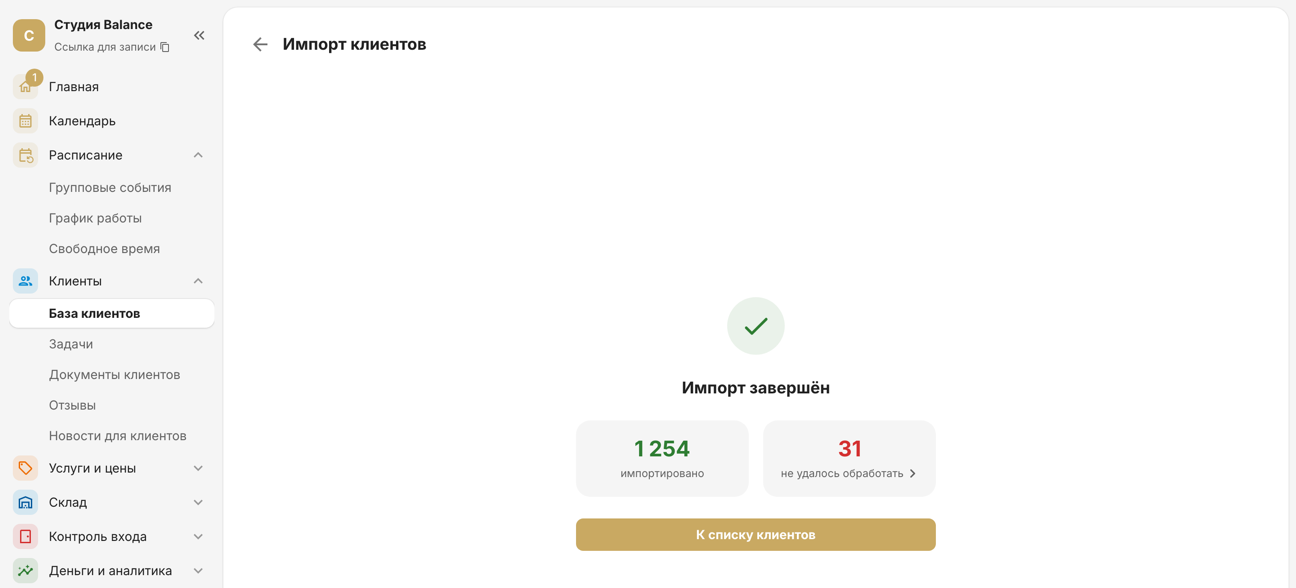
The result is two numbers:
- imported — rows whose clients are now in your base. This includes clients you already had: their profiles don't change and no duplicates are created;
- couldn't be processed — rows without a mobile number or without a name. Click this number to see them as a list.
The list groups the rows by reason — no phone number; not a mobile number, a typo or no country code; no name — and shows them as they are written in the file, so you can find them by name or number. Fix these rows in the file and upload it again — clients already imported won't be duplicated. The cross above the list takes you back to the result.
On Android, the system Back button also takes you back to the result.
If no clients were imported, click Choose another file and make sure the file has phone numbers and names — for example, that you exported the client list rather than a report.
The clients in the file are your regular base, so those who weren't in your base yet are marked Visited before: they won't get the first-visit price if one is set for your services. If the file had newcomers, remove the mark in the client's profile with Restore.
Clients get nothing when you upload them — no SMS, no emails. To have your regular clients book with you in SetNow, share your booking link with them.
How SetNow reads the file
- Columns are recognized by their names in English, Russian, Georgian, Kazakh, Ukrainian and Belarusian — and by their contents: a “Number” column with client numbers from a CRM won't become the phone, and a table without a header row is still understood.
- First and last name in one cell are split by meaning: SetNow knows common first names and last-name endings, so the word order doesn't matter.
- Duplicates — rows with the same number — are merged into one client, and empty fields are filled in from the later rows.
Frequently asked questions
- I uploaded the file twice — will there be duplicates? No: a client is recognized by phone number, so the second time they're simply counted as imported and the profile doesn't change.
- How do I fix a name after the upload? In the client's profile. Uploading the file again doesn't change clients that are already in the base.
- Why weren't clients with landline numbers imported? Sign-in codes and reminders go to a mobile phone, so a row with only a landline number isn't imported. Add a mobile number to the file.
- Numbers without a country code aren't recognized. Only numbers from your company's country are understood without a code. Add “+” and the country code to the rest.
- The first and last name came out swapped. This can happen with a rare first name and a last name without a usual ending — fix it in the client's profile.