Booking link
Your company has a single booking page link, shared by all branches and employees. All you need to do is put it wherever clients find you.
Copy the link
The quickest way is the dashboard's left menu: click Booking link under the company name, and the link is copied.
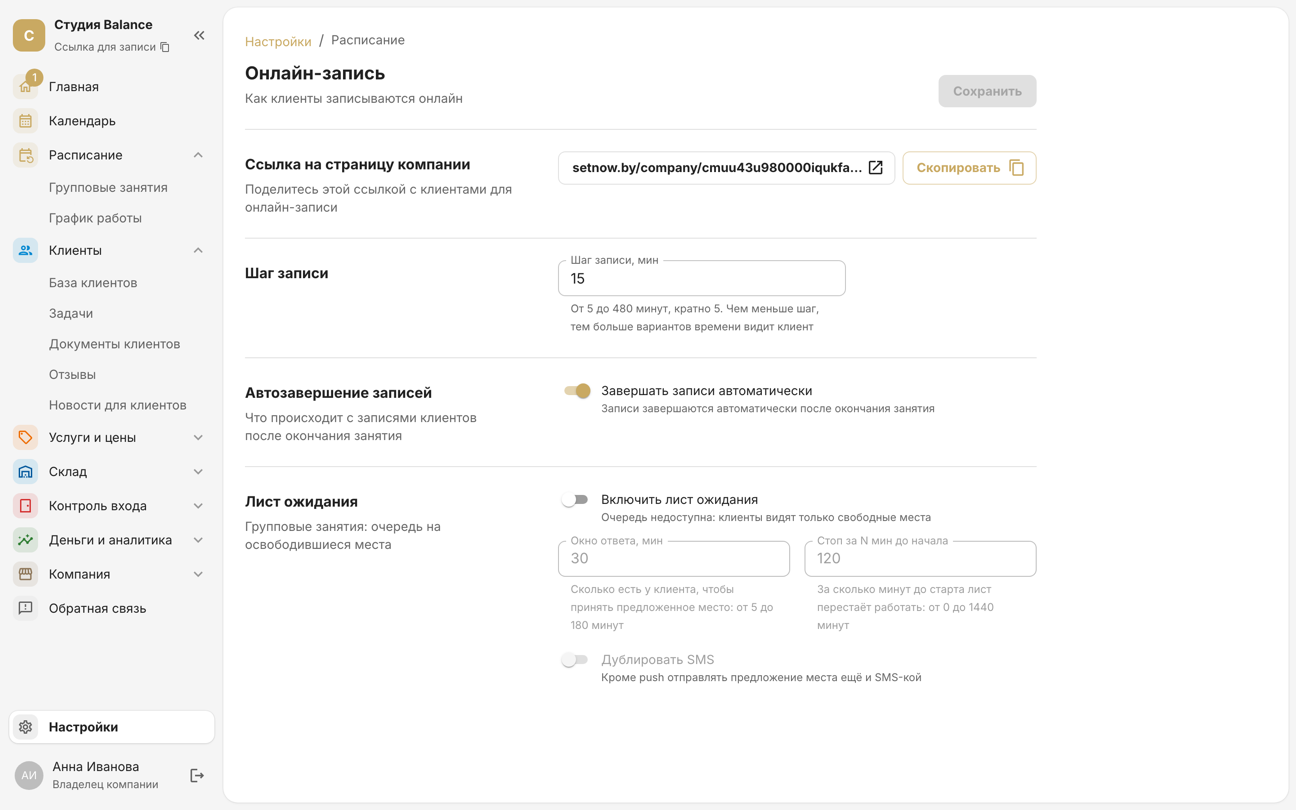
It's also in Settings → Online booking, in the Link to the company page row: click the address to open the page in a new tab, or click Copy.
The quickest way is the Home tab: tap the link icon at the top right, next to the bell. The share sheet opens — send the link to a messenger or copy it.
The link is also in More → Settings → Online booking, in the Link to the company page block: tap the address or Open to open the page in the browser, or tap Share.
There are no separate links for individual employees: a client who wants a particular specialist starts booking from the Employee card.
Share the link
- in your Instagram bio and your Telegram channel description;
- in your business listing on maps;
- on your website, behind a “Book” button;
- in reply to “can I book?” messages in messengers.
In messengers and on social media, the link unfolds into a preview card with your company name and logo.
Upload the logo in Company → Company details.
Upload the logo in More → Company details: tap the logo at the top of the screen.
Check what clients will see
Open the link and go through the booking yourself. At the top of the page are the company's logo, name and phone, plus the branch address if there's only one branch: the address opens a map for the client, and the phone number lets them call. Below are the company description and the booking step cards.
- Language. The page opens in the company's language, and clients can switch it with the globe button in the top-right corner.
- Colours come from the company theme — the same theme as in the client app.
- Times are shown in the company's time zone, wherever the client is.
- Shop — a card under the booking steps, shown if online payment is connected and passes are on sale.
The theme is set in Settings → Theme, and the time zone in Company → Company details.
The theme is set in More → Settings → Theme, and the time zone in More → Company details.
Show your schedule on your website
You can embed your group session schedule in your own website.
In Schedule → Group sessions, click Embed code, then Copy code, and paste the code into your web page's HTML.
In More → Group sessions, tap ⋮ at the top right and choose Schedule on your website. In the sheet that opens, tap Share code: send the code to whoever runs your website, or to yourself on a computer, and paste it into your web page's HTML.
Your site will show a weekly schedule with free spots. Its Book button opens the booking page with the session already selected — the client only has to tap Continue and leave their contact details. Full sessions show No spots instead of the button.