Electronic document signing
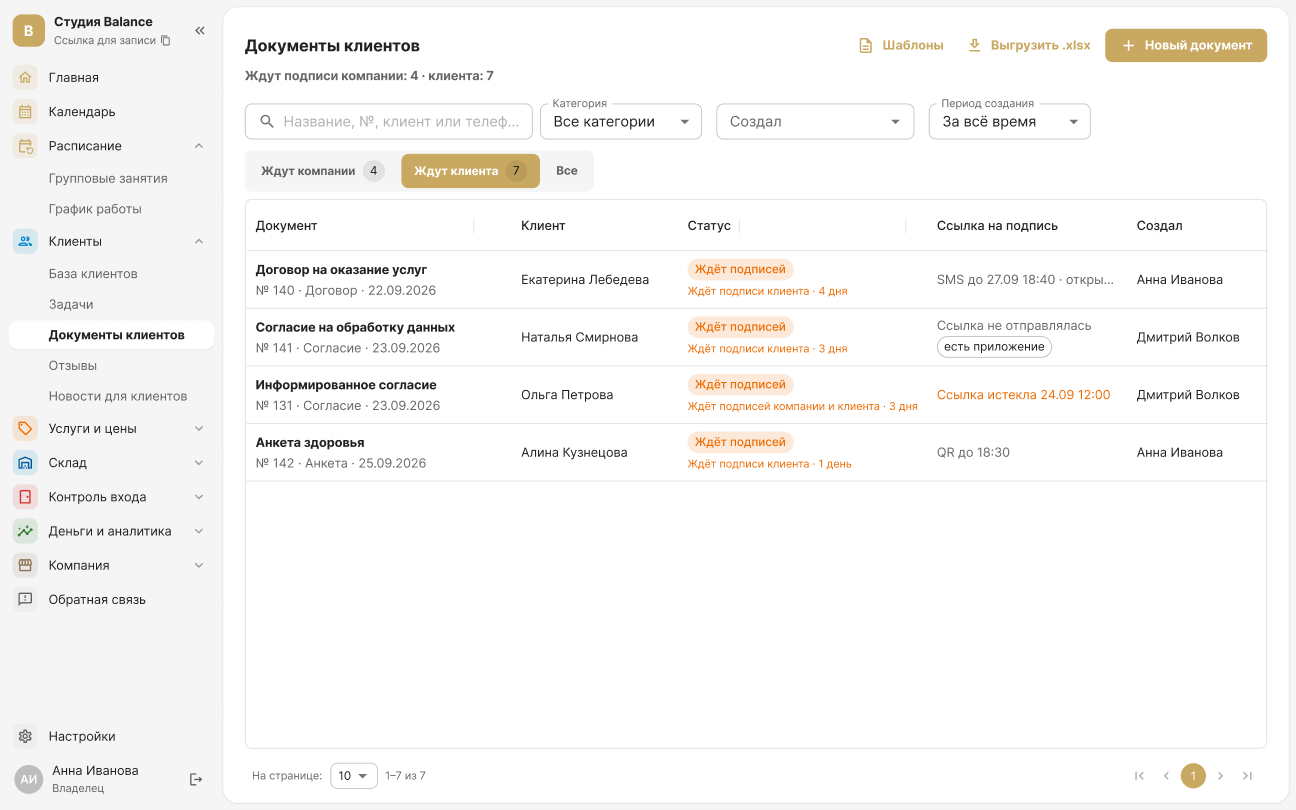
Clients sign contracts, consents and questionnaires electronically — on a staff member's screen, via a link that arrives in Telegram, WhatsApp or by SMS, or in the client app. The document is stored in the client's profile and in the “Client documents” section.
Prepare a template
In Clients → Client documents, click Templates and create a contract or a consent.
Open More → Settings → Document templates and tap + in the top right. In the New template form, fill in Title, Category and Template text: Insert field adds client, company and booking details or a field of your own, and Paste from clipboard brings in text from Word or Google Docs. Create the template with the check mark in the top right.
The system fills in the client's name, the date and the document number itself, while fields such as “Contract number” or “Valid until” are filled in by a staff member when creating the document. Templates are created by the owner and administrators.
Create a document
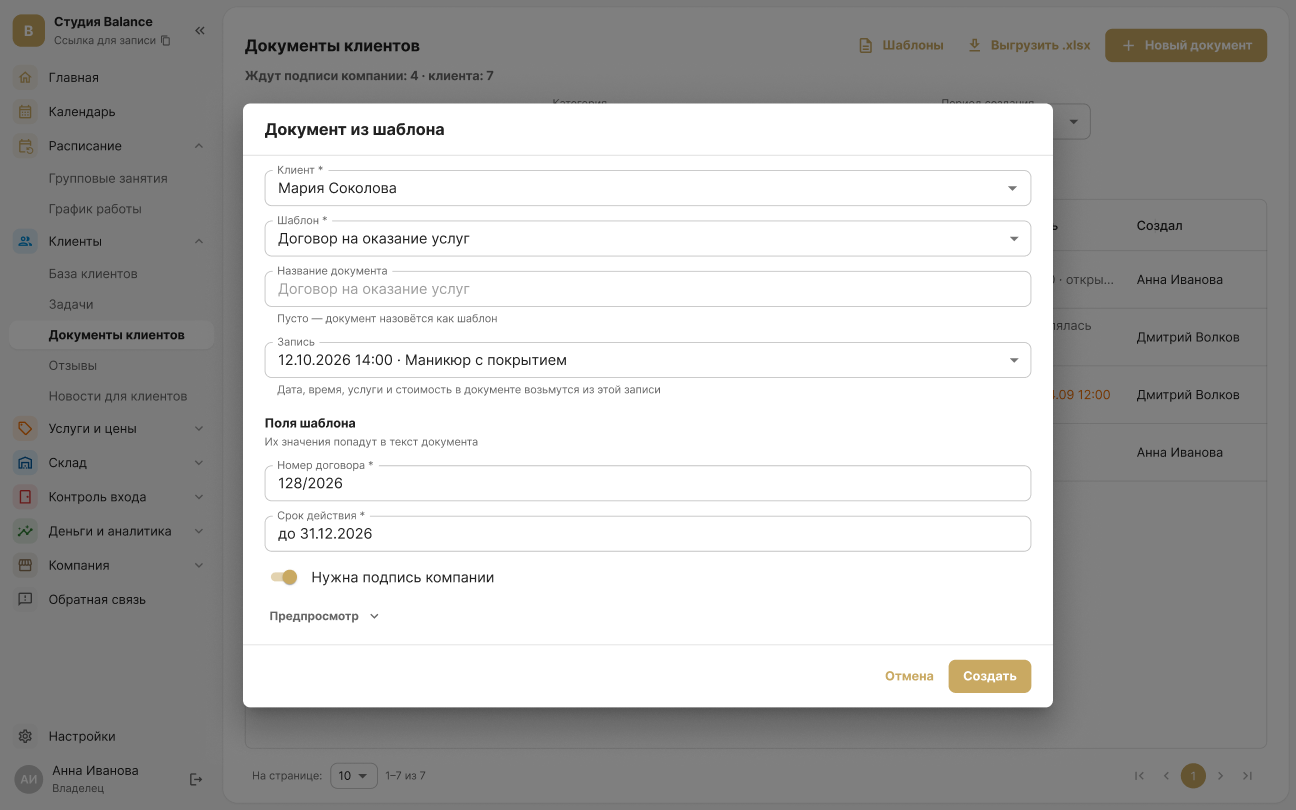
Click “New document” → “From a template”. Choose the client, the template and, if needed, a booking — its date, services and price go into the document. Fill in the template fields and click Create. A ready-made contract can be uploaded with Upload a PDF or photos.
Open More → Client documents or the Documents tab, tap + in the top right and choose From a template in the New document sheet. Choose the client and the template, fill in the Document fields and tap the check mark in the top right — the document is created and opens right away. Upload a ready-made contract from the same sheet: Take a photo of the document, Choose photos or Upload a file — a PDF or an image.
A booking can be linked to a document only in the web dashboard — that's where its date, services and price go into the document.
Send the document to the client
The client signs in one of these ways:
- On screen — signs with a finger, mouse or stylus right at your desk.
- Via a link — receives the link in Telegram, WhatsApp or by SMS (following the channel order) and confirms the signature with a code from an SMS.
- Via a QR code — opens the document on their own phone while standing next to you.
- In the app — the document appears in the “My documents” section.
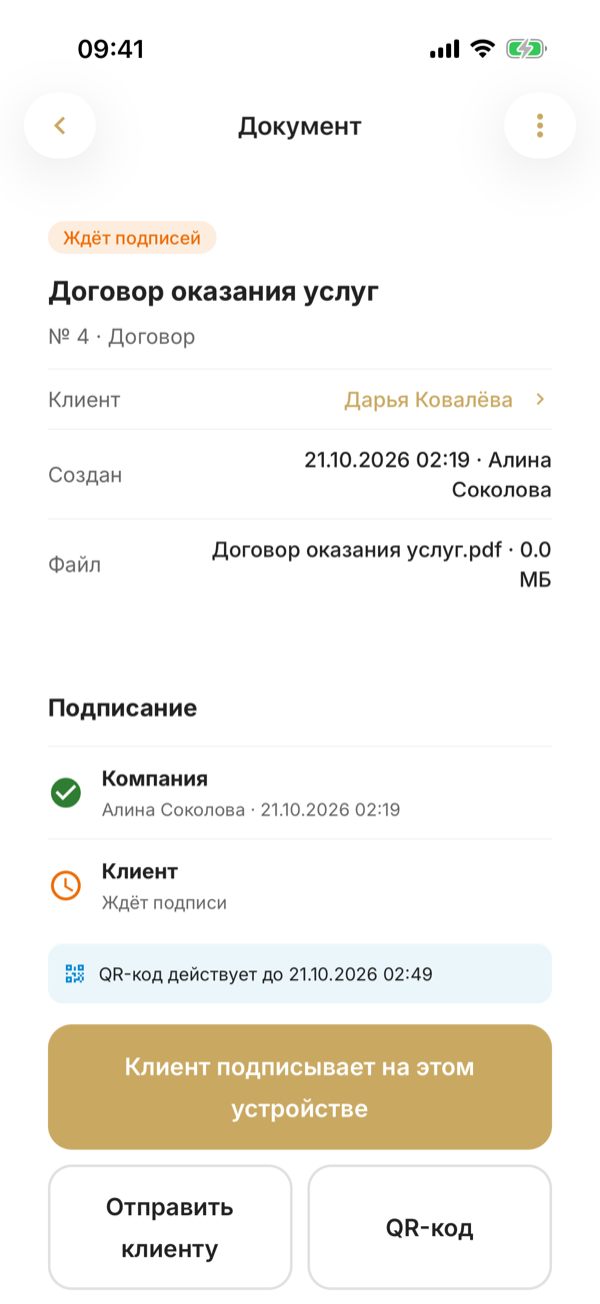
The options are in the Signing block on the document screen: Client signs on this device — hand the phone to the client, Send to client — a link, QR code — a code on the screen. If the client has the app, there's also Notify in the client app.
Before signing, the client accepts the terms of the simple electronic signature. A representative — for example, a parent or guardian — can sign on the client's behalf.
The confirmation code and a link sent by SMS are charged to the company's SMS package. The link is valid for 7 days, a QR code for 30 minutes.
Sign for the company
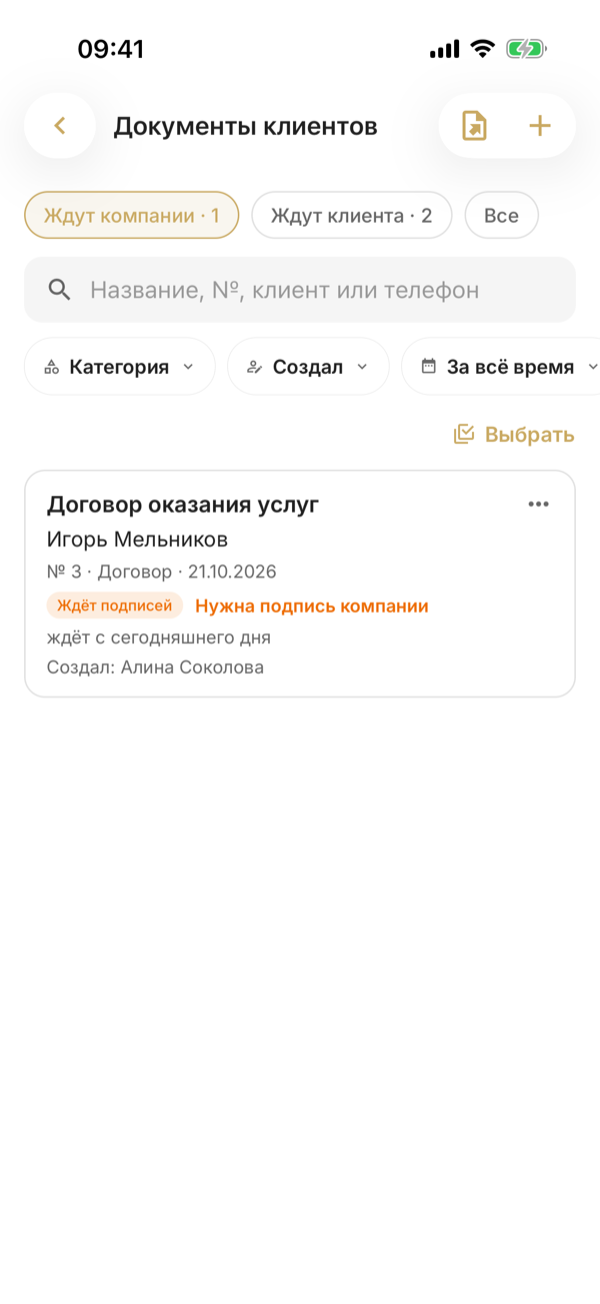
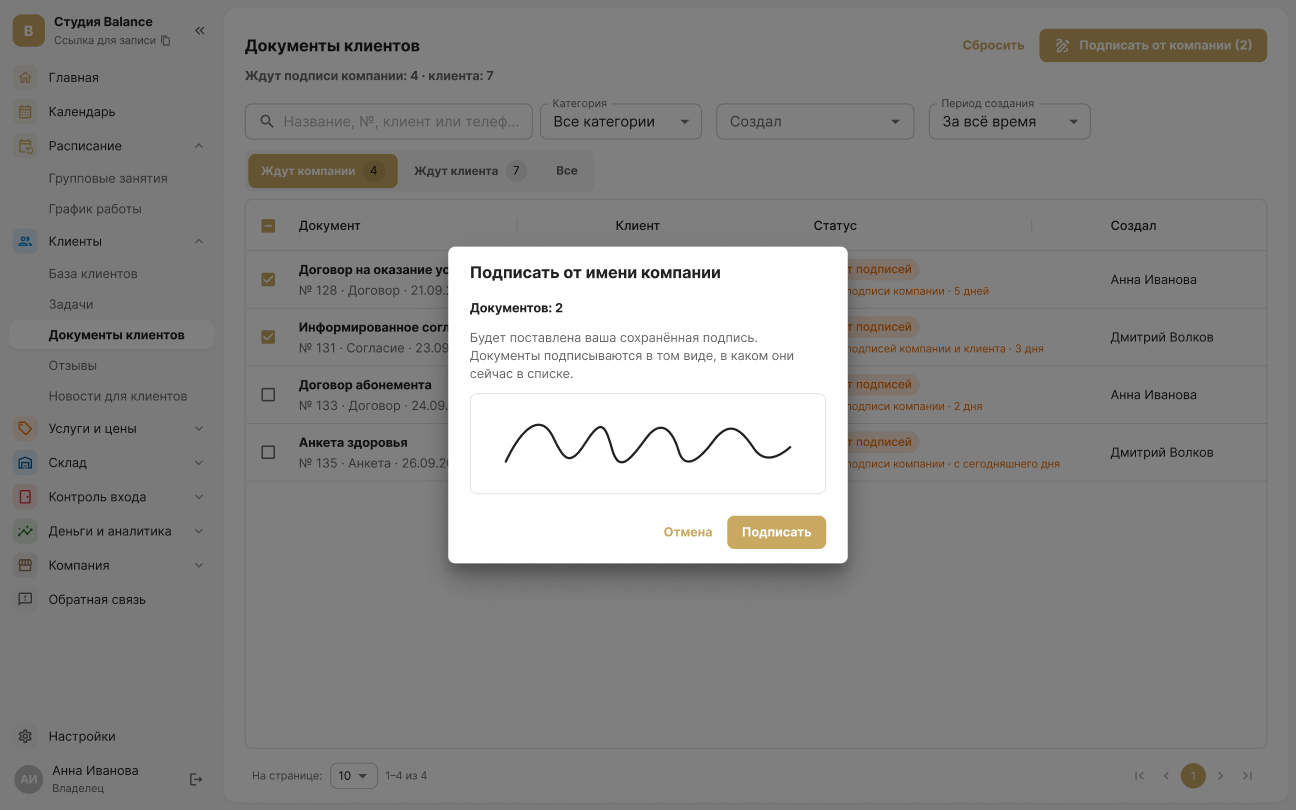
If Company signature required was on when the document was created, open the Awaiting company tab, select the documents and click Sign for the company — your saved signature is applied. You only need to draw it once: Settings → Personal → My signature.
If Company signature needed was on when the document was created, open the Awaiting company tab and tap Select — or press and hold a document. Mark the documents, tap Sign at the bottom of the screen and confirm in the Sign on behalf of the company sheet — your saved signature is applied. You can also sign a single document from its screen: Sign in the Signing block. You only need to draw your signature once: More → Settings → Personal → My signature; if you haven't saved one yet, a Draw signature button appears when you sign.
The owner and the employees the owner has given signing rights to can sign for the company.
Track the status
The Awaiting company and Awaiting client tabs show whose signature is missing and where the signing link is now. A signed document can't be changed — it can only be voided with a reason.
A document in the list has a ⋯ menu: Send link to client, Remind in the app or Withdraw. To void a signed document, tap ⋮ in the top right of its screen → Void document.