Client tasks
A task is a short to-do for a client with a due date and an assignee: “call — she didn't come”, “remind about the membership renewal”. Every task is linked to a client.
Create a task
You can create a task on the Clients → Tasks page, in the client's profile (the “Tasks” section) or right from a booking.
Open More → Tasks and tap + in the top right — the New task sheet slides up from the bottom. In a client's profile, add a task with Add task at the top or + on their tasks screen; from a booking, use the Create a task row under the client. You can put the Tasks tab in the bottom bar.
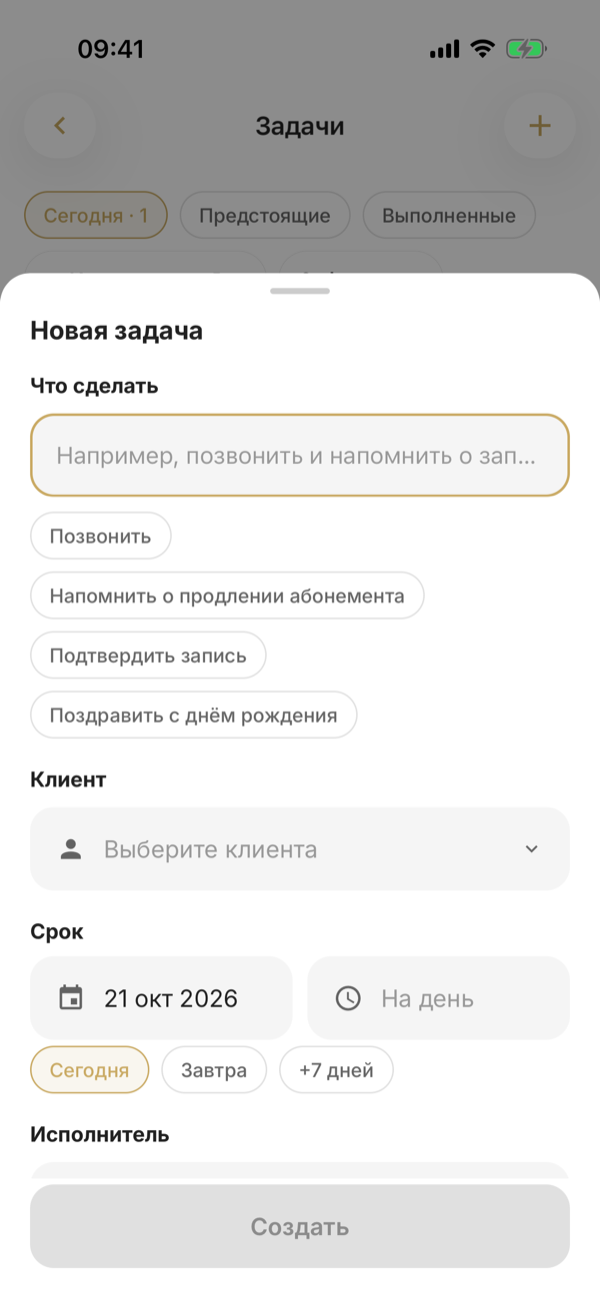
Enter a title, a due date — the day and, if needed, the time — and an assignee; by default, that's you.
Under What to do there are ready-made titles such as Call and Confirm the booking, and under the due date — Today, Tomorrow and +7 days. Without a time, the task is for the whole day. Save it with Create.
Work with the list
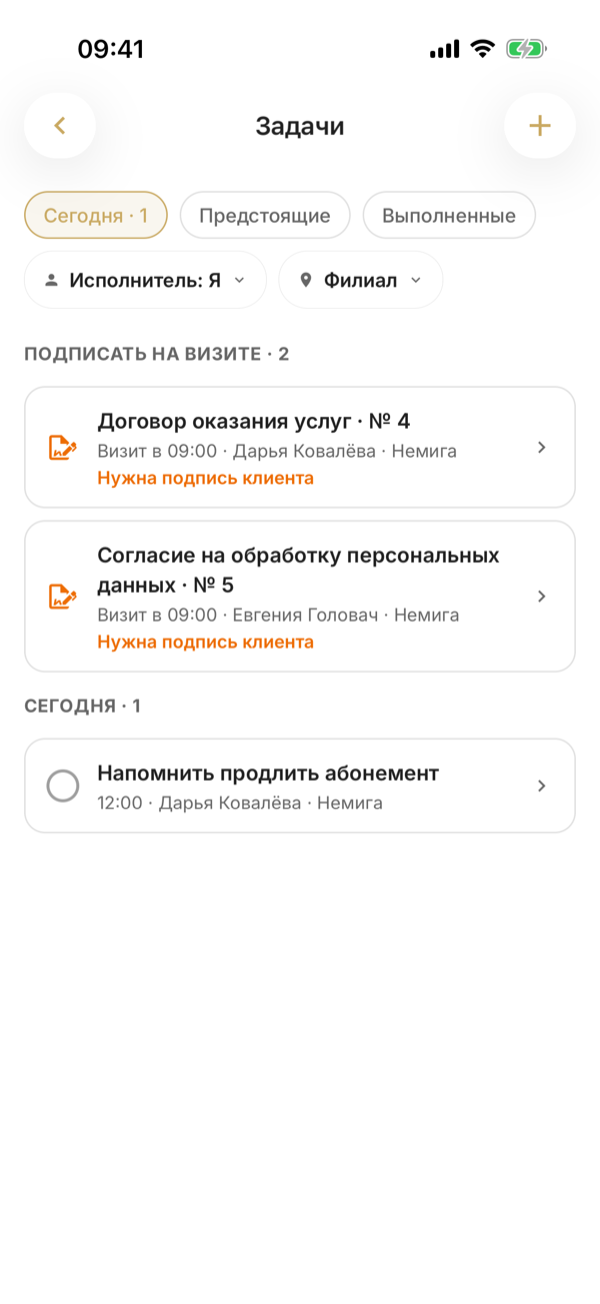
The tasks page has three tabs: Today, Upcoming and Done. On “Today”, overdue tasks are highlighted in red and shown first. Filter by assignee and branch.
At the top of the screen there are three views: Today, Upcoming and Done; the first two show the number of tasks. On Today, overdue tasks come first, under a red heading. Below the views are the Assignee filter (set to you at first) and the Branch filter if there's more than one branch; each opens a sheet from the bottom. Pull the list down to refresh it.
Close in one go
Tick the circle next to a task — it becomes done. Any staff member who can see a task can close it, and the system remembers who did it and when. Cancelling a task means deleting it.
Right after you tick it, Done appears at the bottom with an Undo button that puts the task back to work. Tapping a task opens it in a sheet: there you can edit the fields and Save, Delete the task or Open client profile. A long press gives quick actions: Move to tomorrow (for a done task — Reopen) and Delete.
There's no Delete button if another employee created the task and you're neither the owner nor an administrator.
The assignee gets a push when a task is assigned to them and when it's due (if a time is set). To turn it off, go to Settings → Personal → My notifications, the “Tasks” row.
Tapping such a push opens the Tasks screen and highlights the task.
Tasks on the home page
On the home page, the Tasks for today block shows up to five upcoming tasks — overdue ones first — and an “Add task” button.
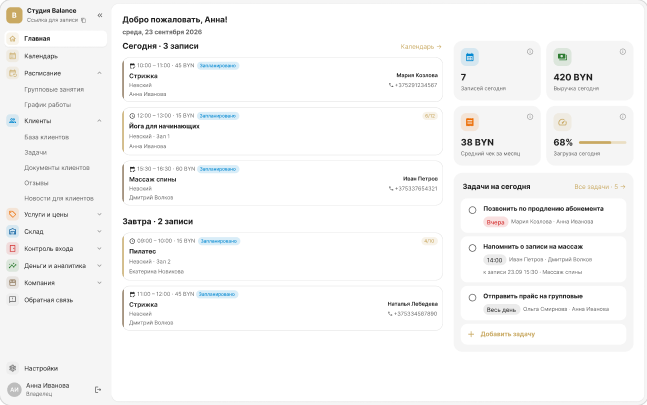
On the Home tab, in the day card under the figures, you'll see the nearest task (overdue ones first) and how many more tasks there are today. The circle closes it, and tapping the row opens the Tasks screen. If there are no tasks for today, Add task is in its place.