Work schedule
The work schedule shows when and at which branch each employee works. The schedule determines free time in online booking, the load in the calendar and the hours for payroll.
How the schedule works
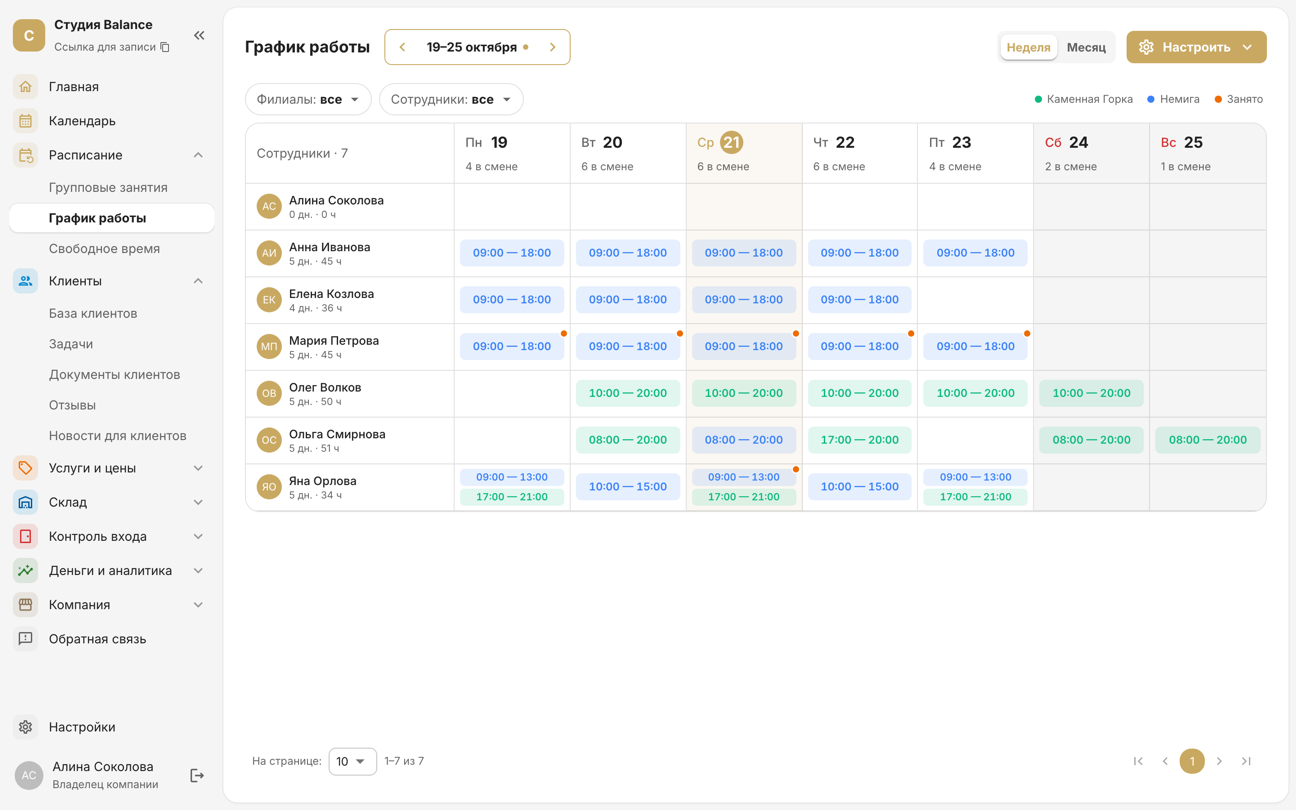
Open Schedule → Work schedule. Rows are employees, columns are days. Week and Month switch the period, and the arrows page through it. Under each employee's name are their working days and hours for the period. The Branches and Employees filters narrow the table.
Open the Shifts tab or More → Work schedule. Rows are employees. In Week view the whole week fits on the screen: each cell shows when the shift starts and ends, under the name are the hours for the week, and the bottom row, “on shift”, shows how many people work each day. In Month view employees are listed on the left and days run across: a week with shift times fits on the screen, and the other days scroll sideways. The button in the top-left corner (or a pinch) opens the month overview — 20 days, with only the shift colour in each cell.
- To pick another week or month, tap the period to the right of Week and Month. Once you leave the current period, a Today button appears at the bottom.
- The Branches and Employees filters are under the filters icon in the top-right corner, next to the gear.
- You can turn the schedule screen to landscape — Month view is easier to read that way.
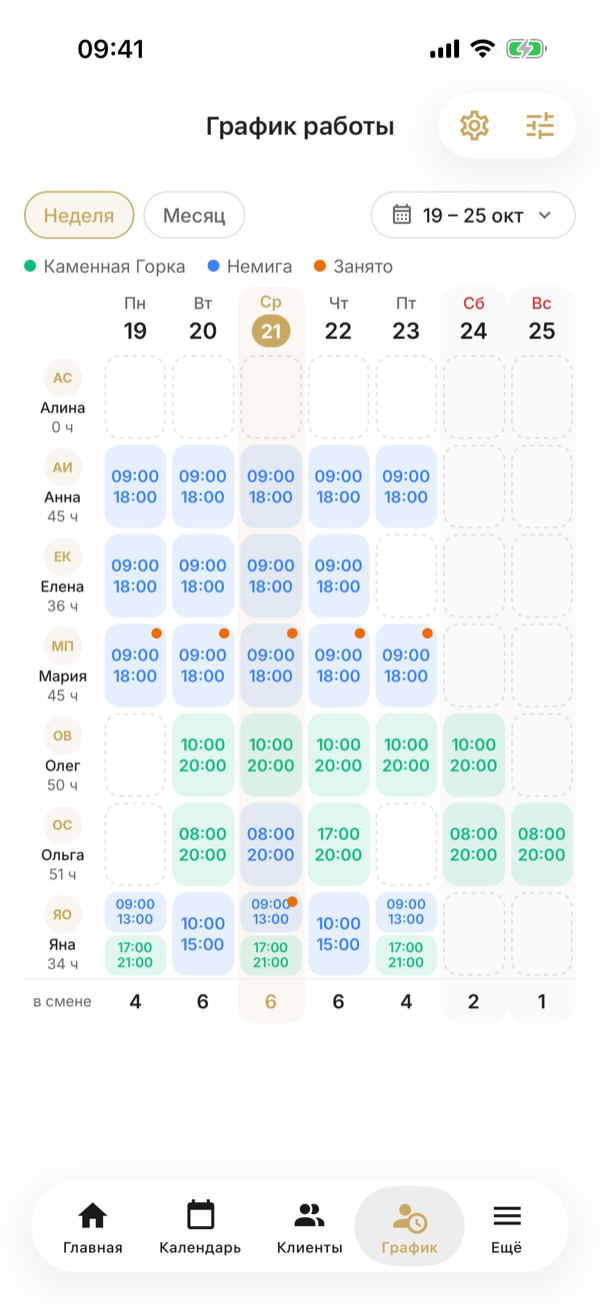
- Shift colour is the colour of its branch; the legend above the schedule explains the colours. The colour is set in the branch card, in Branches.
- A grey shift is at a branch that isn't selected in the filter. You can see it, but it can't be changed in the day editor.
- An orange mark on a day means the day has busy blocks.
Hover over a shift to open the day details: bookings, sessions, busy blocks, how much time is free, and the Open in calendar button.
Press and hold a day to open the day details at the bottom of the screen: bookings, sessions, busy blocks, how much time is free, and the Open in calendar button. This works in Week view and when the schedule shows one employee.
If the schedule has only one employee — a specialist sees only themselves, or a filter is applied — that employee's week or month calendar opens instead of the shared schedule.
You can also open an employee's schedule from their card: Company → Employees → the employee → Work schedule.
Fill in a day
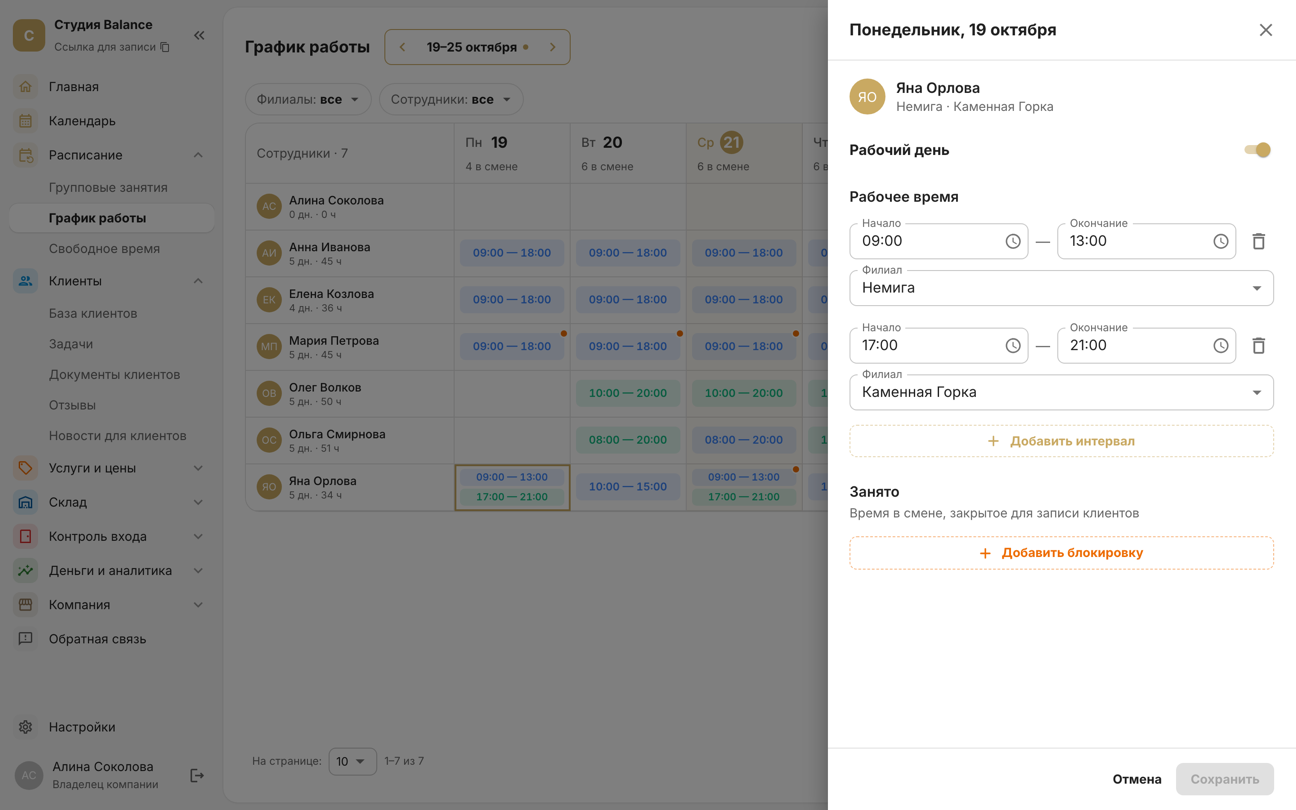
In Week view, click an employee's day. In Month view a click selects the day — then click Set hours on the panel at the bottom. Turn on Working day, set the hours and the Branch, and click Save.
In Week view, tap an employee's day to open the day screen. In Month view a tap selects the day — then tap Set hours on the capsule at the bottom. Turn on Working day, set the hours and the Branch, and save with the tick in the top-right corner.
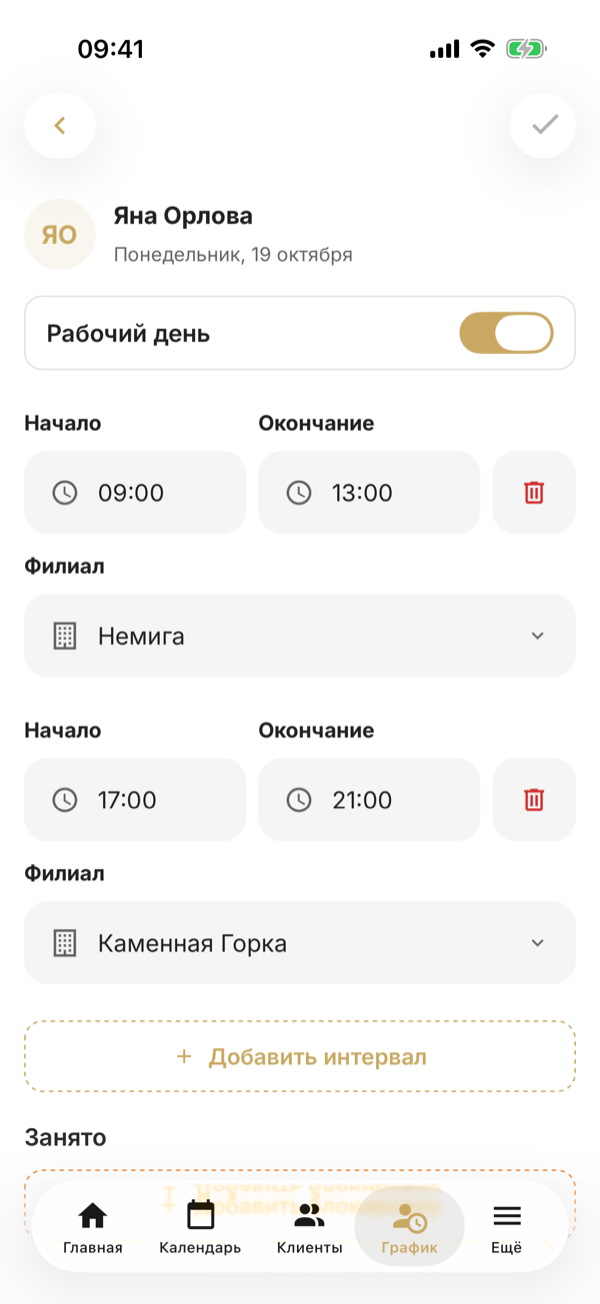
With Working day turned off, the day is a day off: the day's shifts and busy blocks are deleted.
- Add interval — another shift on the same day, for example the morning at one branch and the evening at another. Intervals must not overlap.
- A shift must fit within one day: it can't run past midnight.
- The branch list shows only the branches the employee is linked to. They're linked in the employee's card, in the Branches field.
To fill in a whole month at once, use a shift pattern or copying.
Set hours for several days at once
In Month view, click the days you want to fill in — you can pick different days for different employees. Shift + click selects a range, a click on a day in the header selects that day for everyone, and the checkbox by a name selects the employee's whole month. A panel appears at the bottom: Select all, Make days off and Set hours. To clear the selection, use the cross on the panel or press Esc.
In Month view, tap the days you want to fill in — you can pick different days for different employees. Tapping a date selects that day for everyone, tapping a name selects the employee's whole month; the employee card now opens with a long press on the name. A capsule appears at the bottom with All and Set hours; the cross clears the selection.
Only employees who share a branch can be selected together: after the first one, those without any of their branches fade out and can't be selected. If they share several branches, the form asks where to put the shifts.
The Working hours form is the same as for a single day: Working day, intervals and Busy. Start and end times are filled in from last time. The form shows right away how many shifts will be set.
If some days already have shifts, choose Replace existing — the day becomes exactly as in the form, all its shifts and busy blocks are replaced — or Skip those cells.
If some days already have shifts, turn Replace existing shifts on or off: on, the day becomes exactly as in the form and all its shifts and busy blocks are replaced; off, those days stay as they were.
- Apply sets the shifts on all selected days at once.
- With Working day turned off, the selected days become days off: their shifts and busy blocks are deleted.
- Up to 1,000 shifts and 50 employees at a time.
With a single day selected, Set hours opens the usual editor for that day, with what's already in it.
Mark busy time
Lunch, training and personal errands are marked in the same editor, in the Busy block: Add busy block, the time and a comment. The time stays working time but is closed: clients can't book it online, and employees can't put a booking or session on it.
Busy blocks are also shown in the calendar, where you can delete one by tapping or clicking it.
A busy block applies at all branches: the employee is busy wherever their shift is. Busy blocks aren't subtracted from the hours for payroll.
Bookings and sessions stretch the shift
You can also put a booking or session outside a shift. The employee's shift at that branch then stretches to cover it, and if there was no shift at that branch that day, a new one appears for the time of the booking. This way, the schedule of coaches who only run sessions fills itself in.
It doesn't work the other way round: the schedule won't let you delete or shorten a shift so that bookings or sessions end up outside working hours. When you save, you'll see the error “You can't change the schedule: sessions would be left outside working hours” with the dates — move or cancel them in the calendar first.
A stretched shift is working time: it goes into Money and analytics → Time tracking and into hourly pay. You can correct the hours there too.
A stretched shift is working time: it goes into More → Time tracking and into hourly pay. There you can only approve the shift; correct the hours in the web dashboard.