Shift pattern, copying and clearing
On this page
Filling in the schedule one day at a time takes a while. Three tools change many days at once: a shift pattern, copying and clearing. Each one shows a preview first, and nothing changes until you confirm it. To set the same hours on a few specific days, select the days in the schedule.
They're in the Configure button menu at the top of Schedule → Work schedule: Shift pattern, Copy working hours and Clear schedule.
They're under the gear in the top-right corner of the schedule screen (the Shifts tab or More → Work schedule): Shift pattern, Copy working hours and Clear schedule.
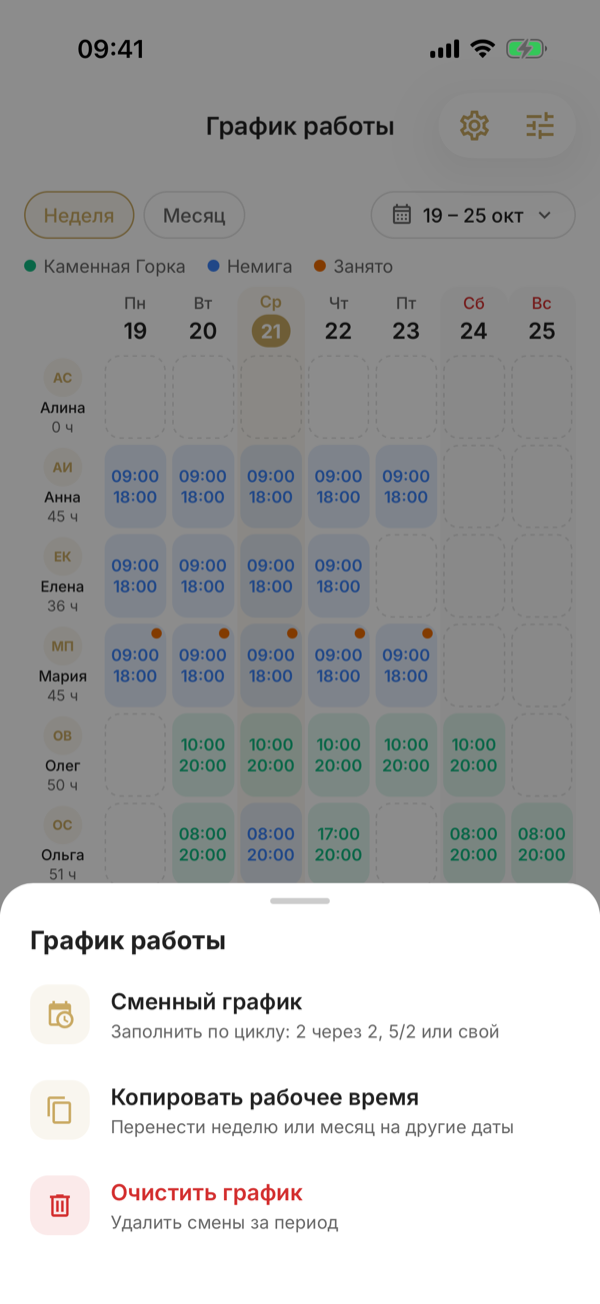
Shift pattern
For work in cycles: 2 on / 2 off, 3 on / 2 off, 5 on / 2 off. In the Shift pattern window, set:
- Employees — who gets the pattern; you can pick several people at once;
- Branch — if none is selected, each employee's only branch is used. For anyone with several branches, select the branch explicitly;
- the cycle — a ready-made one such as 2 on / 2 off, or Custom cycle. The cycle days are tiles in a row: tap or click a tile and choose Work with hours or Day off; + at the end of the row adds a day;
- the period — This month, Next month, 3 months or your own dates, up to a year.
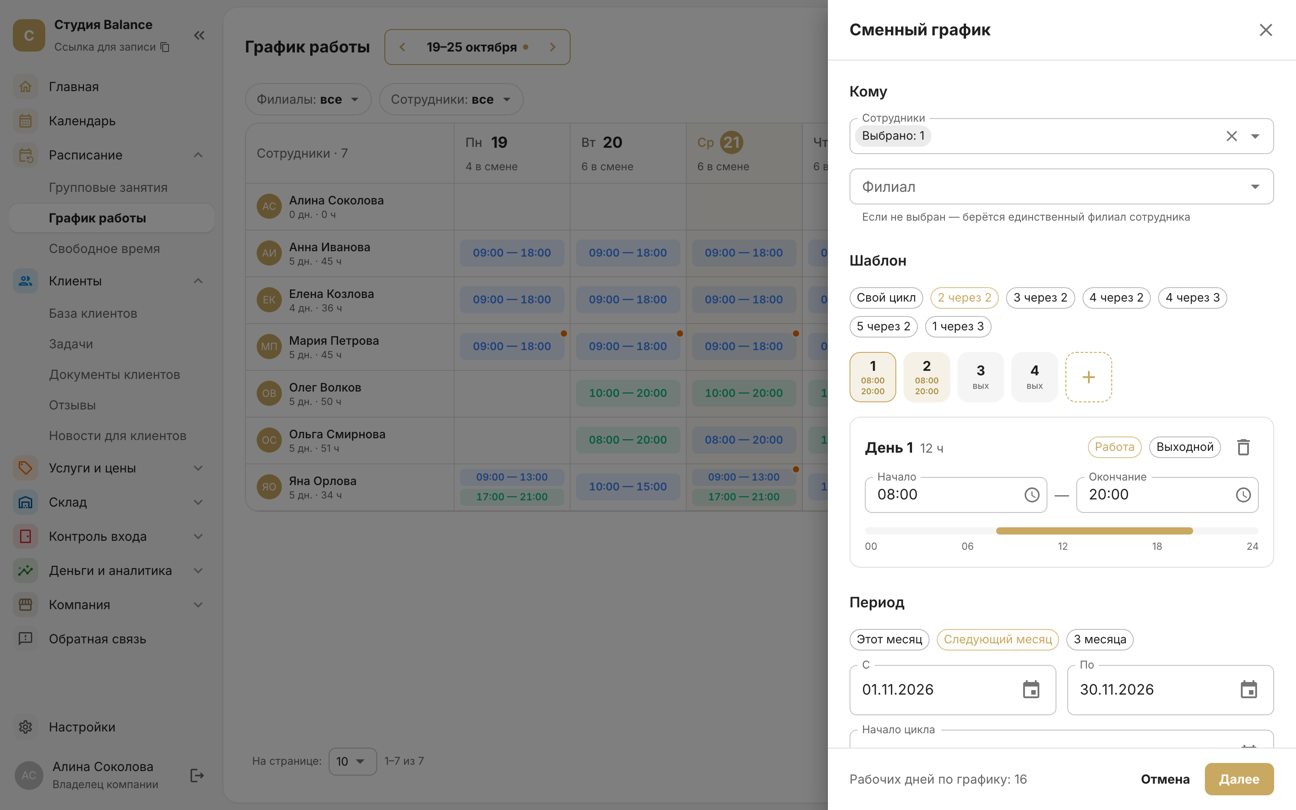
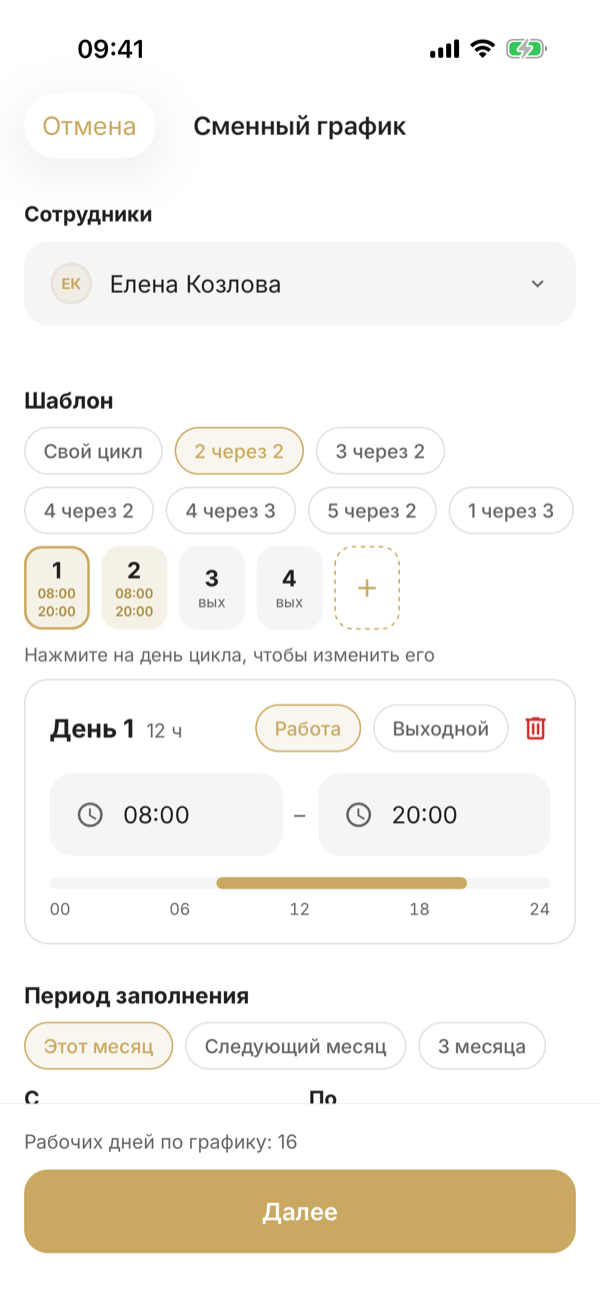
Below is a calendar of the period with the working days. Tap or click a day to start the cycle from it. To continue last month's rotation without a break, enter the date of the previous period's first shift in Cycle start.
Next shows how many shifts will be created and the days on which the employee already has shifts.
Choose what to do with those days: Skip those days or Overwrite the existing shifts.
Choose what to do with those days under Conflicting days: Skip or Overwrite.
Overwriting brings the period exactly in line with the pattern — on the cycle's days off, shifts are deleted at all branches. Then press Fill.
Copying
Copies all employees' working hours from one period to another. Pick a preset — This week → next, This month → next — or set the dates: under From, the source period of up to 31 days, and under To, the day to paste from. Next shows every shift that will be copied.
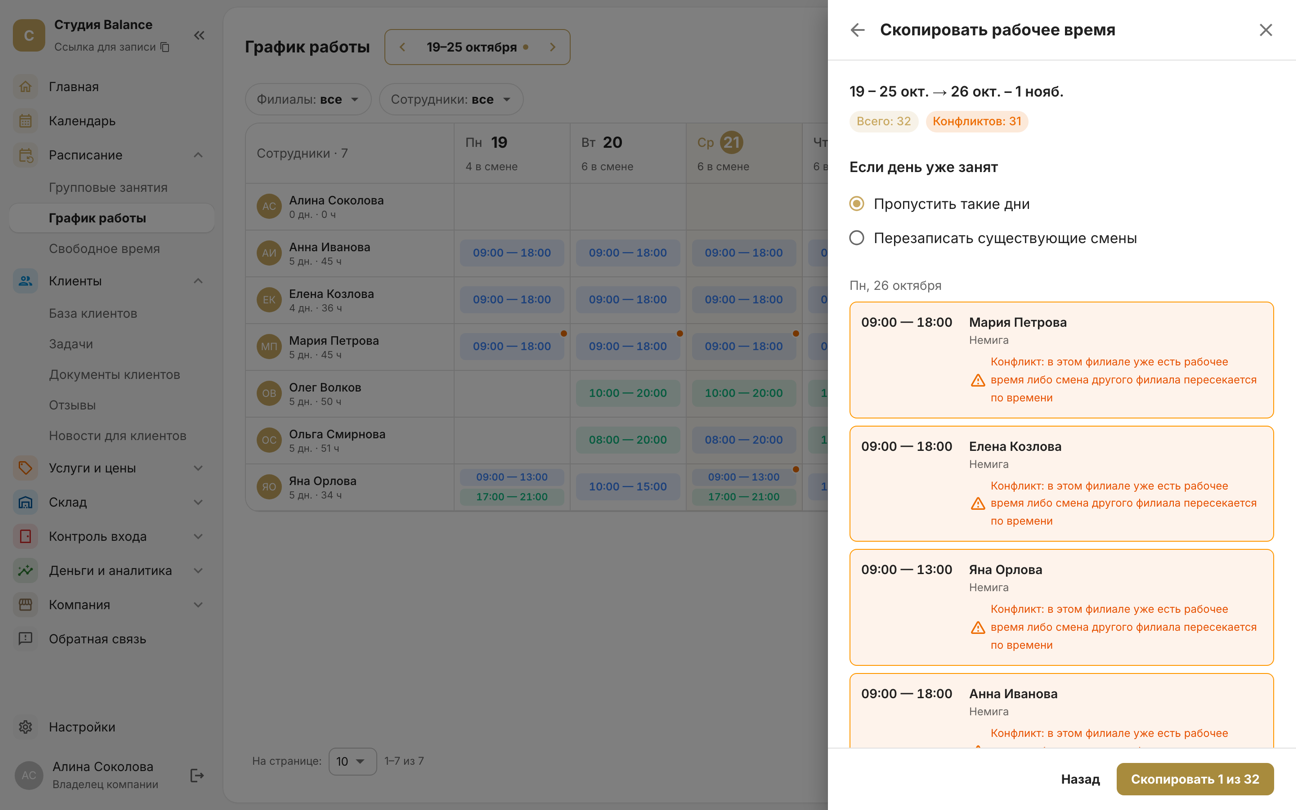
A conflict means the employee already has working hours at the same branch that day, or a shift at another branch overlaps in time.
Choose what to do with such days: Skip those days or Overwrite the existing shifts.
Choose what to do with such days: Skip those days or Overwrite the existing.
Only shifts are copied: busy blocks, bookings and sessions stay where they are. The session schedule is copied with its own button, in the group sessions section.
Clearing
Deletes shifts for a period. In the Clear the schedule window, choose Employees, Branch — if none is selected, shifts at all branches are deleted — and the Period: This week, This month or your own dates, up to a year. Next shows how many days and shifts will be deleted for each employee.
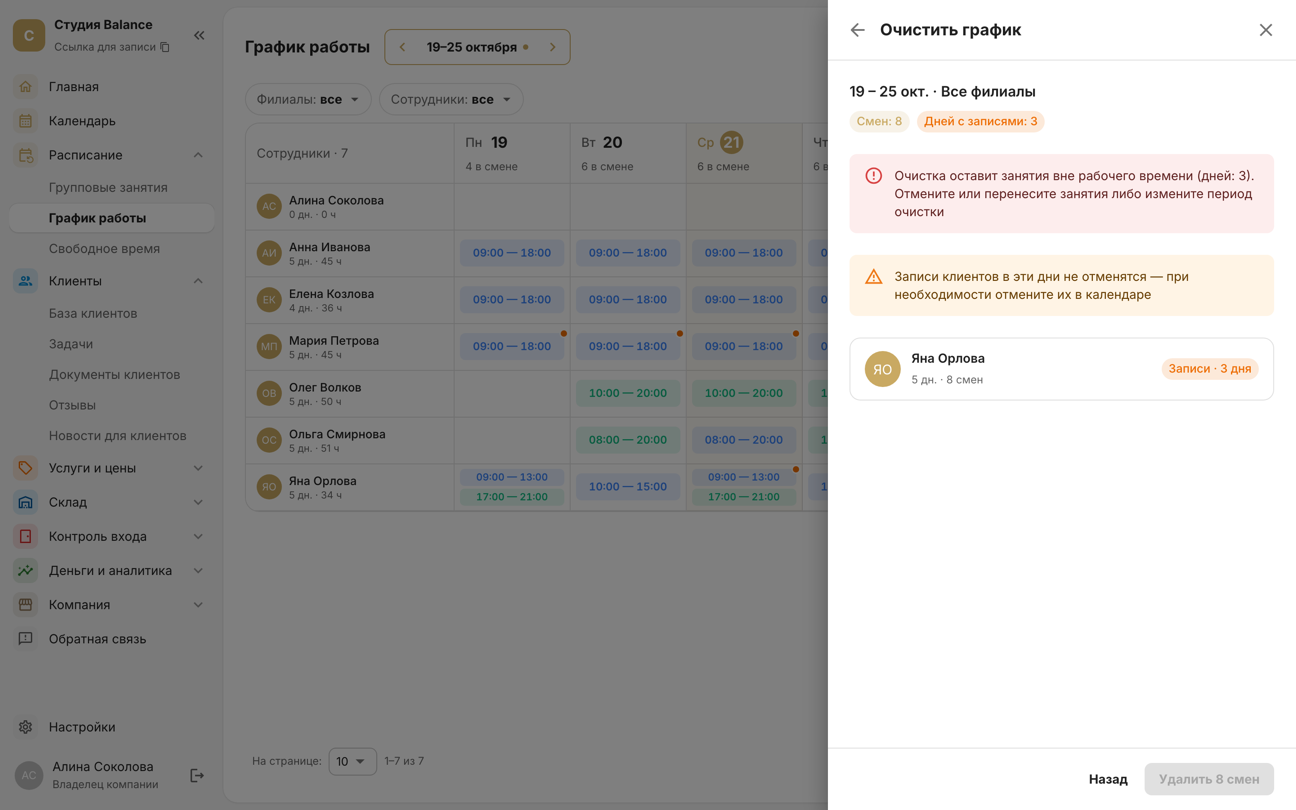
If there are bookings or group sessions on those days, the schedule won't be cleared: the preview shows an error and the delete button is inactive. Bookings aren't cancelled together with the shift — move or cancel them first, or narrow the period.
Bookings and sessions are protected
No tool will leave a booking or session outside working hours — not a shift pattern with overwriting, not copying, not clearing, not hours set on selected days, not the day editor. The word “sessions” in these errors also covers regular client bookings. Past days are protected too: the load and payroll are calculated from them.